

Advanced configurations
Build with the Respan MCP
We recommend installing the Respan MCP so your AI coding tool can work with your prompts, logs, and traces directly. Authenticate with your Respan API key from the API keys page:
See the MCP docs for OAuth setup and other clients.
New to prompts? Start with the Quickstart. For more, see Prompt composition, Structured output, and Tool calling.
Prompt schema
The prompt object supports a schema_version field that controls how prompt configuration and request-body parameters are merged.
Prompt schema v2 (recommended)
Set schema_version=2 for the recommended merge behavior:
- Prompt configuration always wins for conflicting fields (no
overrideflag needed). - Uses prepend/instructions-style merging depending on the endpoint mode.
- Supports a
patchfield for applying additional parameter overrides. Thepatchobject must not containmessagesorinput.
Important: OpenAI SDKs strip fields like schema_version, patch, and prompt_slug during validation. Prompt schema v2 requires raw HTTP requests (e.g., requests in Python or fetch in TypeScript).
Prompt schema v1 (default, legacy)
When schema_version is absent or 1, merging is controlled by the override flag:
override=true: prompt configuration wins for all conflicting fields.override=false(default): request body wins for conflicting fields.
Override other parameters
Override prompt messages
Append new messages to the end of existing prompt messages:
Replace all existing prompt messages:
Deployment & versioning
Via UI
Via code
Commit saves a new version of your prompt. Deploy makes a version live for production traffic.
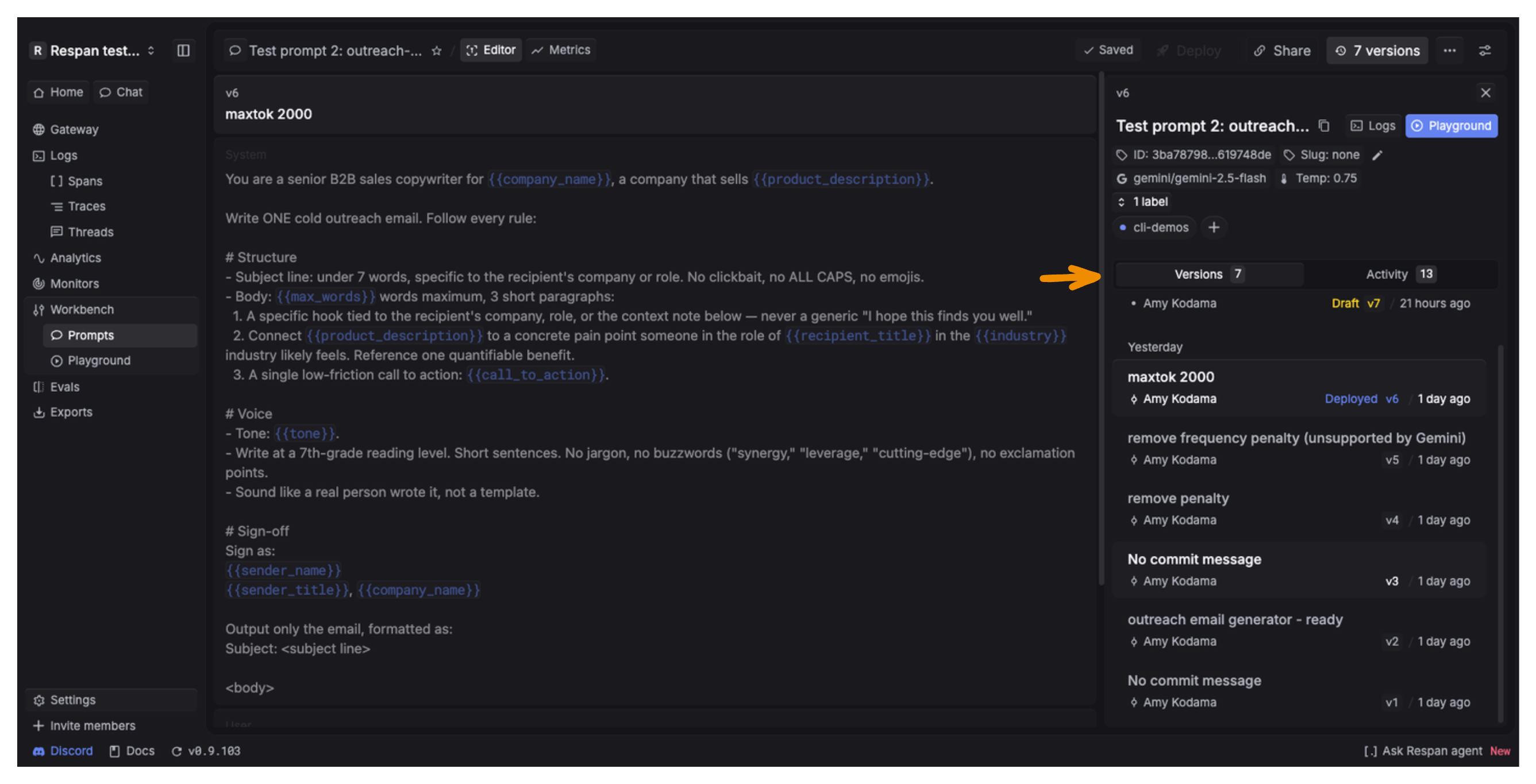
Manage versions from the panel on the right side of the Editor. It has two tabs:
- Versions lists every committed version, newest first. Each entry shows its commit message, version number (
v1,v2, …), author, and timestamp. The live version is tagged Deployed, and your current uncommitted edits show as a Draft. - Activity shows a chronological log of changes made to the prompt.
Compare versions: use the Playground to run different versions side by side.
Deploy a version: select the version you want, then click Deploy to make it live. To roll back, deploy an earlier version the same way.
Fallback models
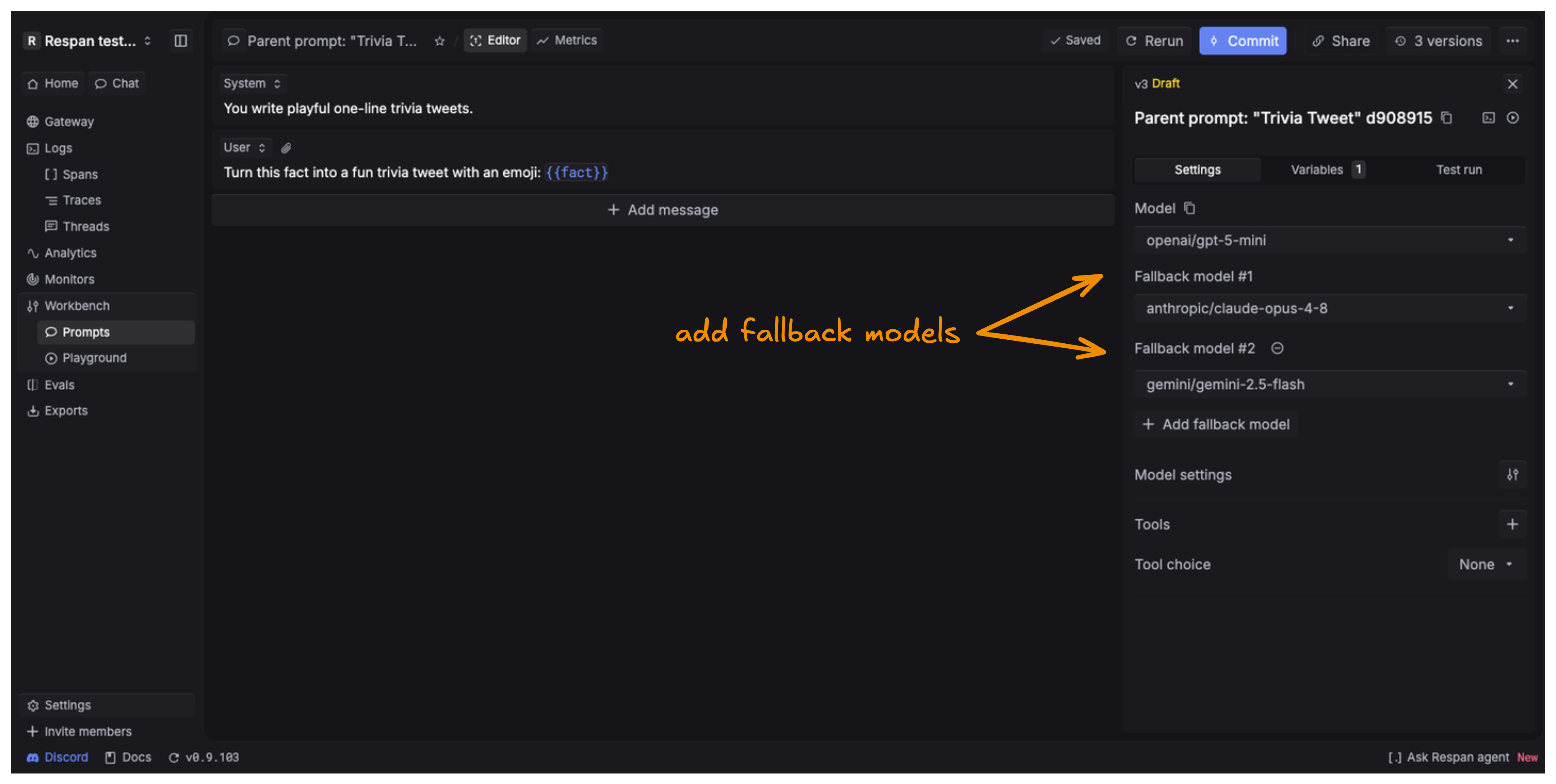
Add fallback models to try a different model after the primary route exhausts its eligible attempts. The gateway follows the configured order and stops on the first success.
Use in UI
Use in code
In the prompt editor’s Settings panel, click Add fallback model and select a model. Add as many as you need, then commit and deploy.
For the exact order of retries, fail-fast errors, and fallback models, see Retries and fallback order.
Streaming
Enable streaming with the Stream toggle at the bottom of the model settings. After enabling, commit and deploy the prompt.
If you use a prompt with streaming enabled, you must also set stream=True in your SDK call:
For how streaming works at the gateway level, see the Chat Completions API reference.
Prompt logging
Respan prompts
External prompts
Log prompt usage to track performance metrics, compare versions, and analyze request distribution.
To see the logs for a specific prompt, click Logs on the Prompt page. This opens the Spans page with the Prompt filter already set to that prompt.
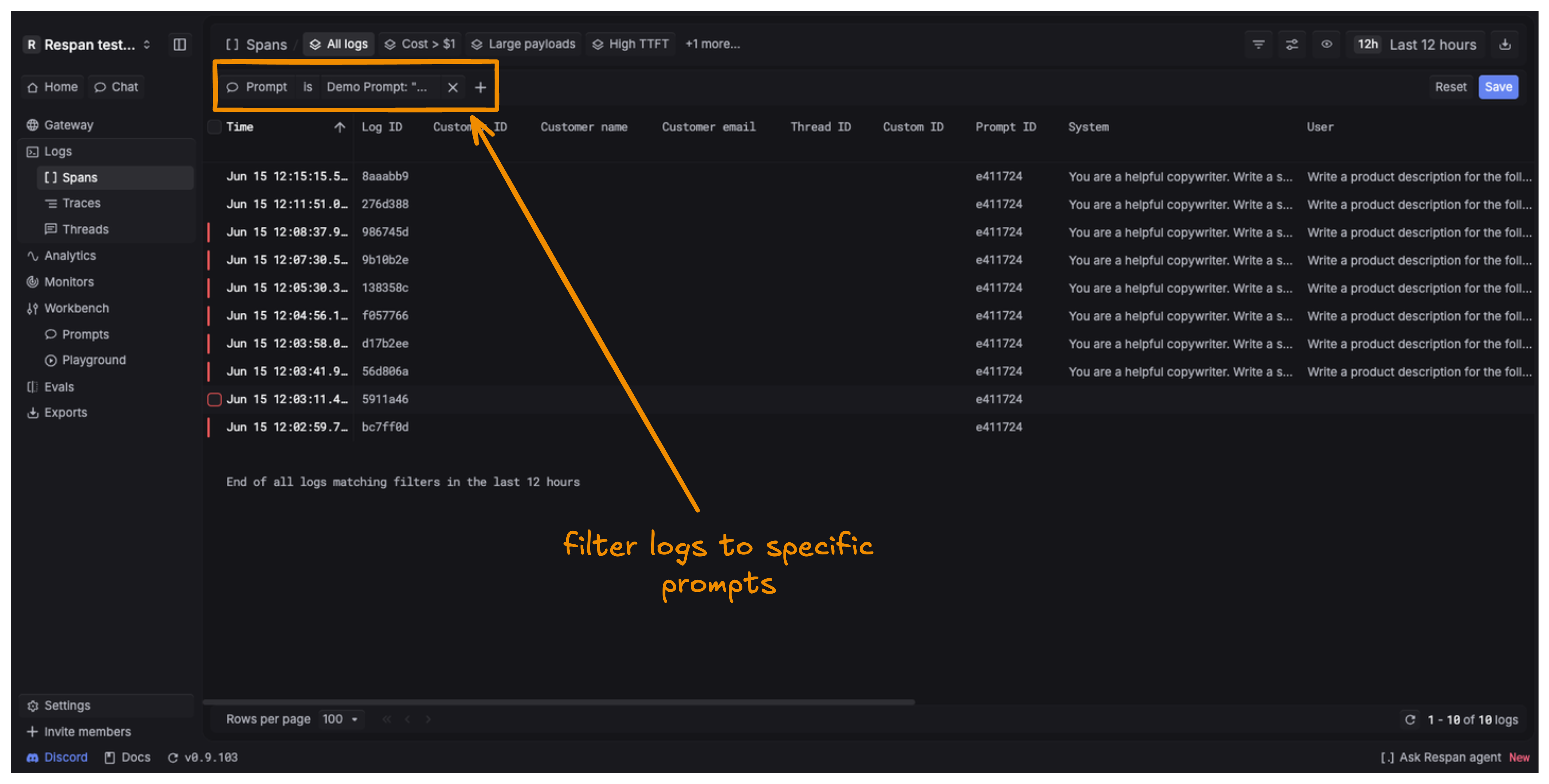
You can filter by any prompt yourself by selecting it under Prompt in the Spans filters.
Parameters reference
The unique identifier of your saved prompt template.
Variables to inject into your prompt template. Values can be strings or typed prompt objects for composition.
When true, the saved prompt configuration overrides SDK parameters like model and messages.
Parameters that override your saved prompt configuration (temperature, max_tokens, messages, model, etc.).
Controls how override parameters are applied.
messages_override_mode:"append"(add to existing) or"override"(replace all)
Controls the prompt merge strategy. 1 (default, legacy) uses override flag logic. 2 (recommended) uses prepend/instructions-style merging where the prompt config always wins. See Prompt schema.
Additional parameter overrides applied in v2 mode (schema_version=2). Must not contain messages or input. Useful for overriding fields like temperature or max_tokens while letting the prompt config control messages and model.
Ordered fallback models to try after the current route exhausts its eligible attempts. If every model fails, the gateway returns the terminal error.
When enabled, the response includes the final prompt messages used.
Pin a specific prompt version. Omit for deployed version, use "latest" for newest draft.
See all Respan supported params.