

Slack
Set up Respan
- Sign up — Create an account at platform.respan.ai
- Create an API key — Generate one on the API keys page
- Add credits or a provider key — Add credits on the Credits page or connect your own provider key on the Integrations page
Use AI
Add the Docs MCP to your AI coding tool to get help building with Respan. No API key needed.
Connect a Slack workspace to Respan so monitors, automations, and other workflow notifications can post directly to a channel. The connection is per-organization: install it once, then any channel the Respan bot can reach becomes available as a notification destination.
Connect Slack
Open the Integrations page
Go to the Integrations page under Settings. Find Slack in the Workspace section and click connect button.
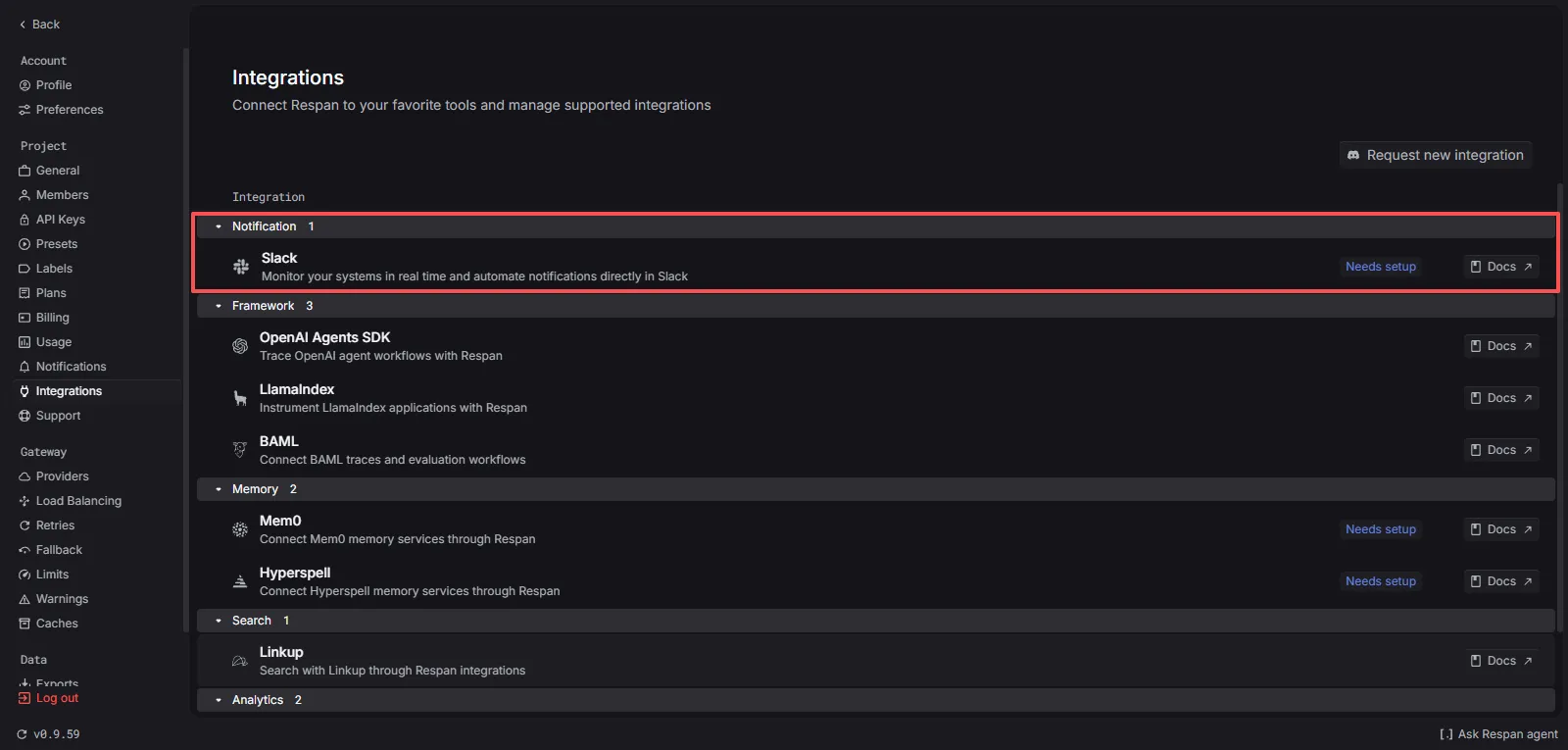
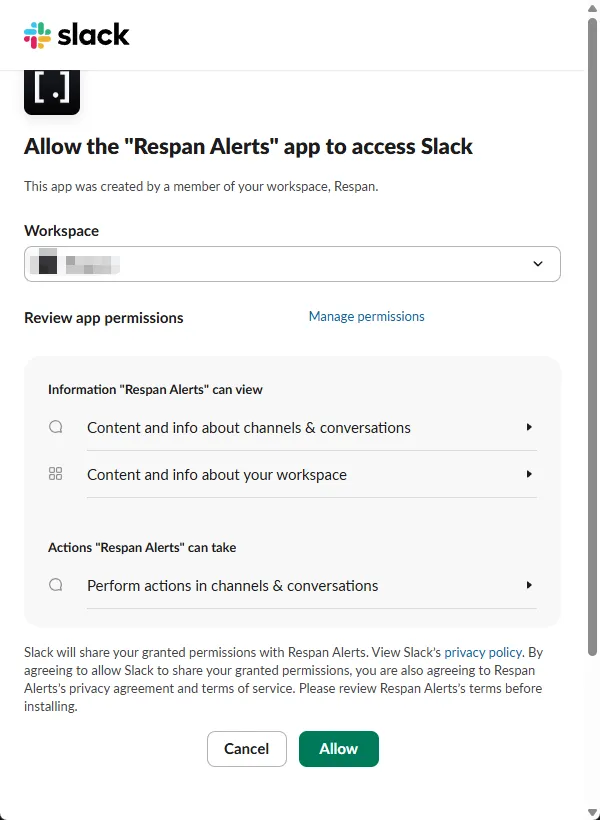
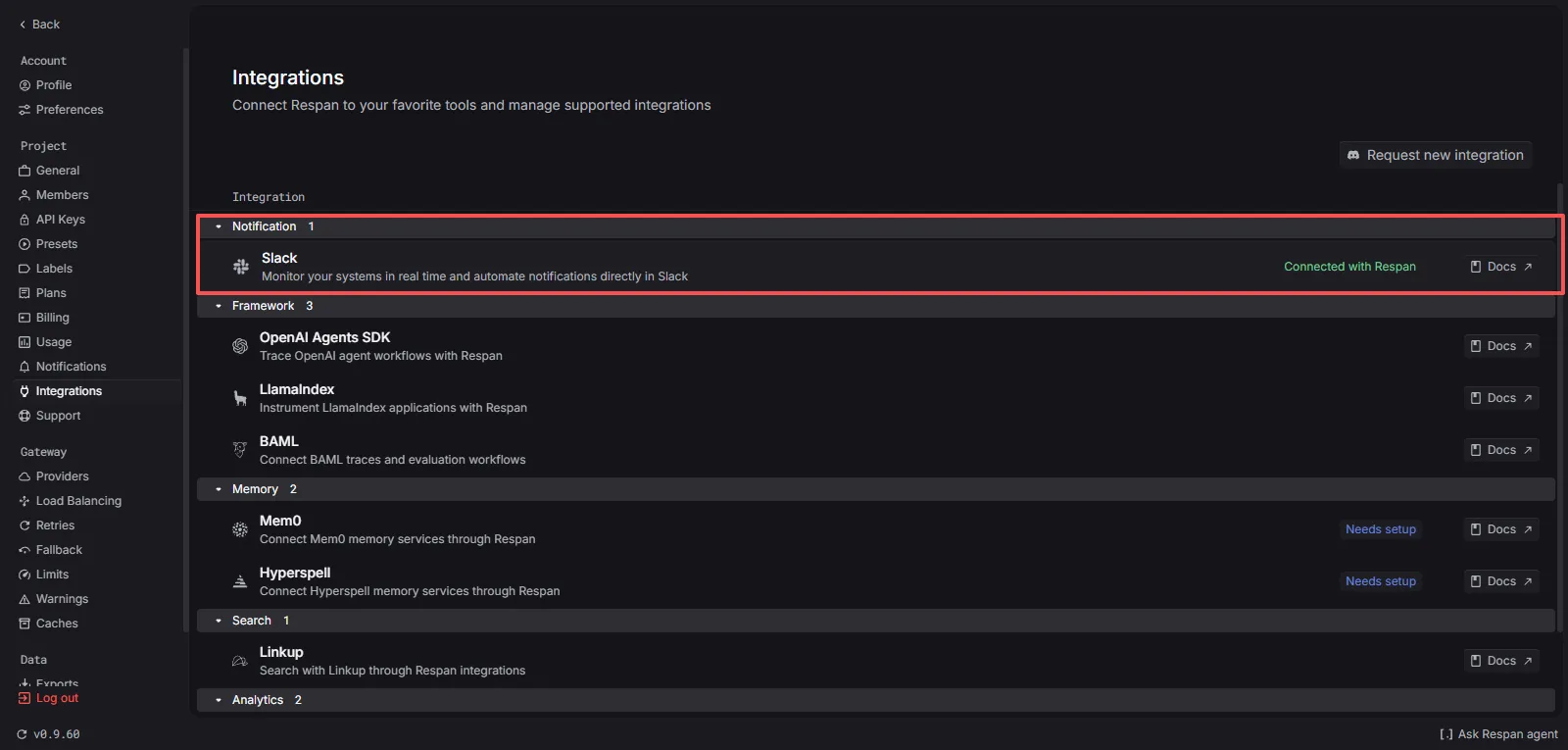
Use Slack in Respan
Once connected, Slack shows up as a notification destination anywhere Respan sends alerts.
Monitor alerts
Open a monitor and, under Notifications, select Slack. Pick a channel from the searchable dropdown — the list is fetched live from the connected workspace.
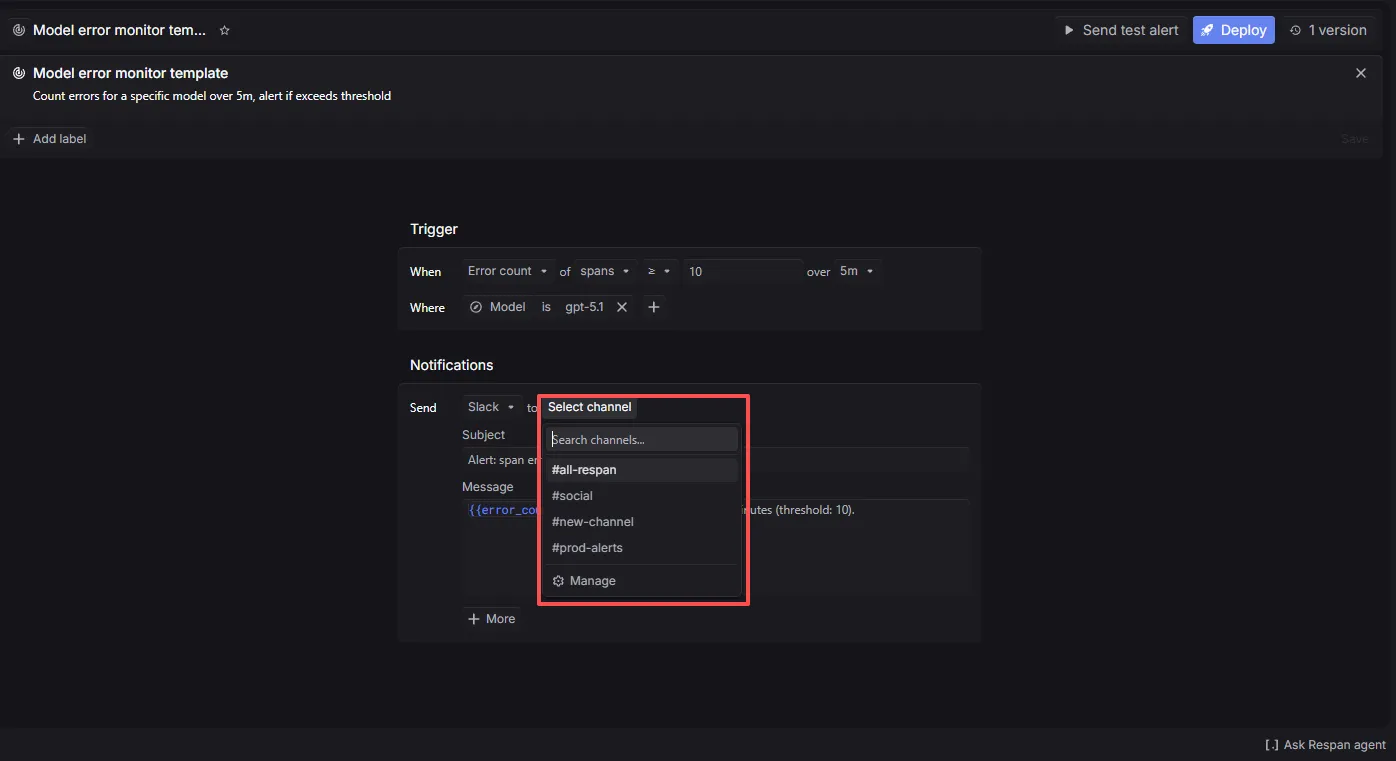
Private channels only appear in the picker if the Respan bot has been invited. In Slack, type /invite @Respan in the channel you want alerts to land in.
Multiple destinations
A single monitor or automation can post to more than one Slack channel. Add each channel as its own notification destination — Respan will fan out the message.
Disconnect Slack
On the Integrations page, click Disconnect on the Slack row. Respan revokes the OAuth token with Slack and removes any stored channel references. You can reconnect at any time; previous monitor configurations that referenced Slack channels will need a new channel selection after reconnecting.
Disconnecting does not remove the Respan app from your Slack workspace. If you also want to remove the app itself, go to your Slack workspace’s Apps page and remove Respan.
Troubleshooting
The popup closed but the integration still shows disconnected
The Slack consent flow failed — usually because the Slack workspace admin requires app approval, or the browser blocked third-party cookies during the handshake. Try again in a non-private browser window. If your workspace restricts app installs, ask a Slack admin to approve Respan first.
A private channel is missing from the picker
The Respan bot only sees private channels it has been invited to. Open the channel in Slack and run /invite @Respan, then reopen the channel picker in Respan.
Alerts stopped arriving after a long pause
Slack admins can revoke app tokens from the workspace’s admin console. If that happens the integration will start failing silently. Disconnect and reconnect on the Integrations page to issue a fresh token.