Export
Export logs, traces, and users as CSV or JSONL, once or every 15 minutes.
Exports copy logs, traces, or users out of Respan as files, once or every 15 minutes. Respan keeps logs for your project’s retention period, so export anything you need to keep longer.
Where you can export
| Page | Export |
|---|---|
| Observability › Logs | One-time or recurring export of spans |
| Logs grouped by traces | One-time export of traces (Export traces) |
| Observability › Users & identifiers | One-time export of users (Export users) |
| Observability › SQL editor | Full query results. See Export results. |
Every export runs in the background and lands in Settings › Exports.
Export logs once
Open the export menu
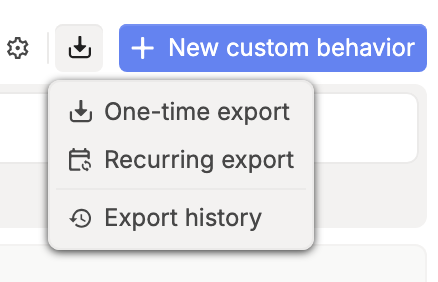
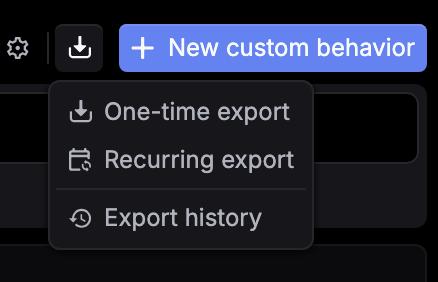
In Observability › Logs, click the export icon (Export logs) in the top bar, or press E. Choose One-time export.
Choose what to export
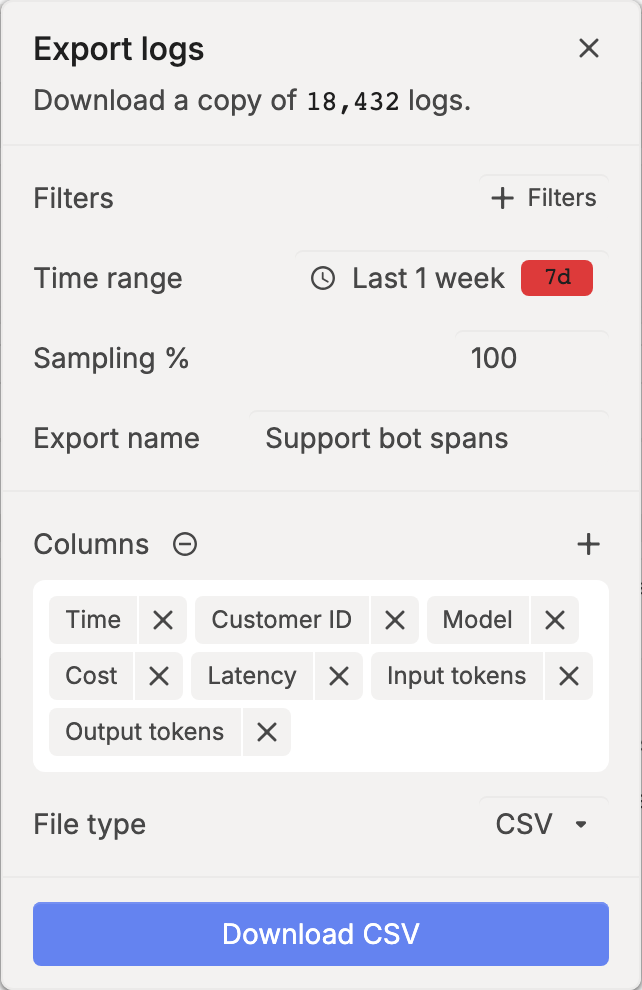
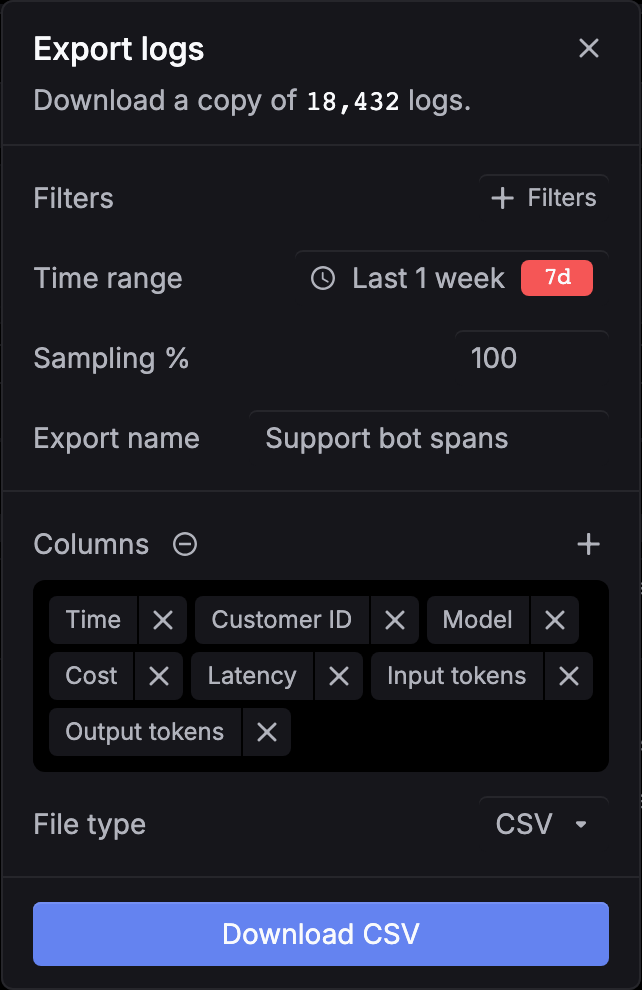
Set Filters, Time range, Sampling % (100 exports every match), an optional Export name, the Columns, and the File type (CSV or JSONL). The header shows how many logs match.
Start the export
Click Download CSV (or Download JSONL). When the file is ready, download it from Settings › Exports.
To export specific spans, select their rows in the table and click Export in the action bar at the bottom.
Exports started from the top bar leave out message content, such as Input and Output, even when those columns are selected. To export content, select the rows and export from the action bar.
Export logs every 15 minutes
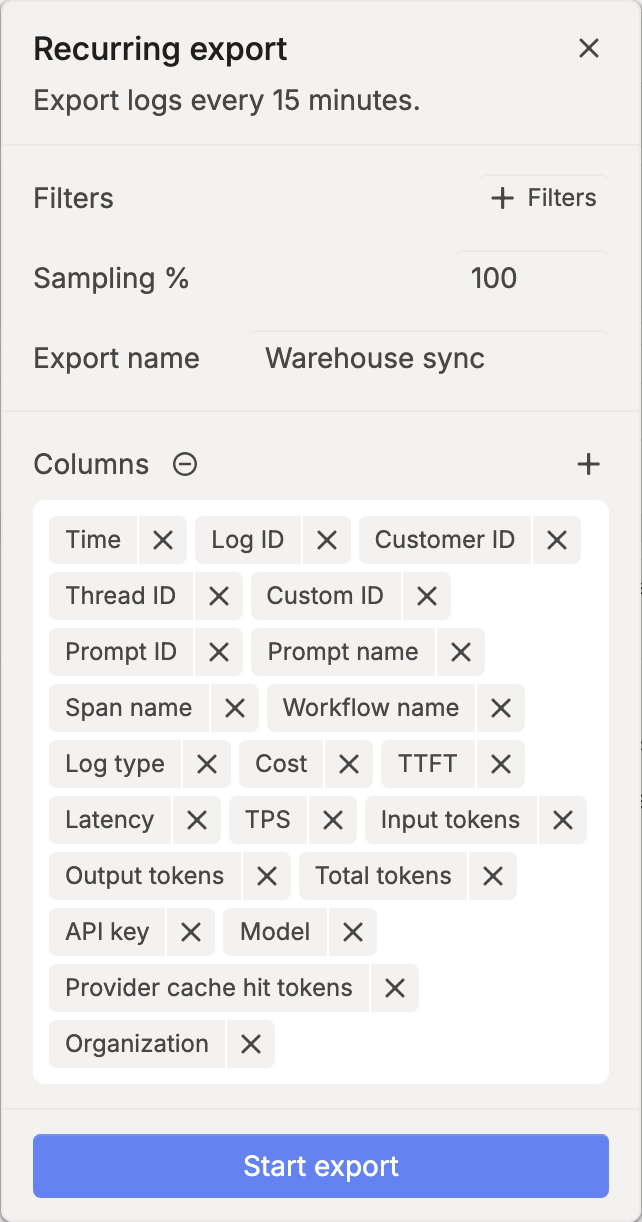
A recurring export sends the previous 15 minutes of matching logs on every run. A project has one recurring export.
Open the recurring export
In Logs, click the export icon and choose Recurring export.
Choose what to export
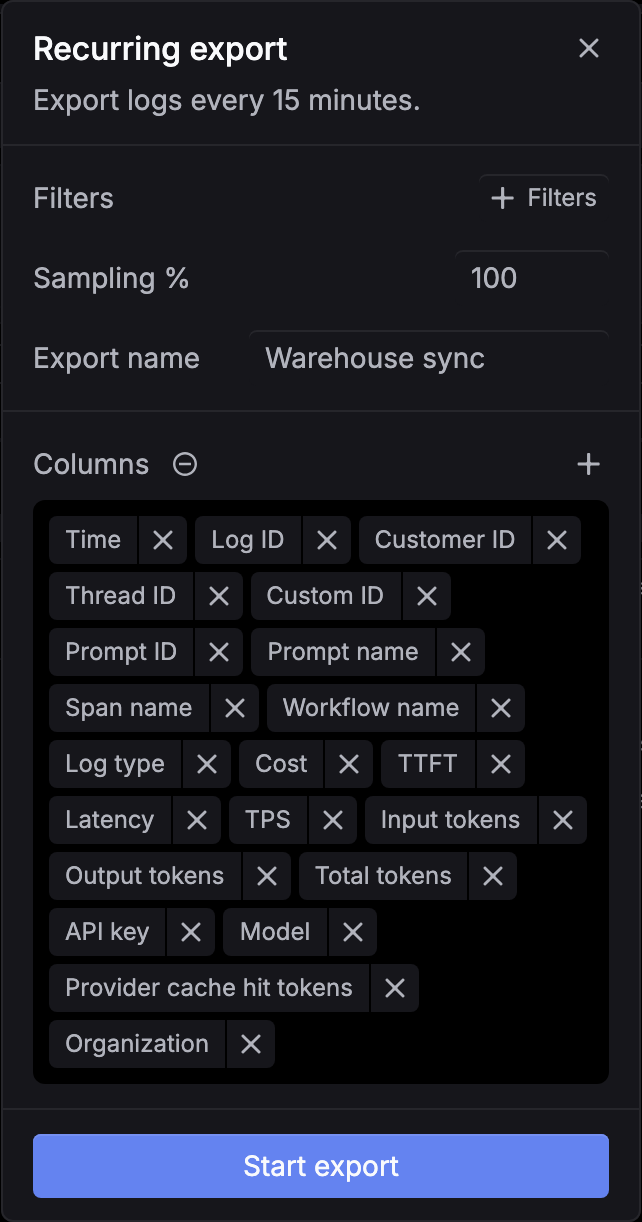
Set Filters, Sampling %, an optional Export name, and Columns. Message content isn’t offered for recurring exports.
Start it
Click Start export. Each run’s files show up in Settings › Exports.
To change or stop it, open Recurring export again. It shows Running · exports every 15 minutes. Edit the fields and click Update, or click Pause.
Download from Exports
Go to Settings › Exports, or choose Export history in the export menu.
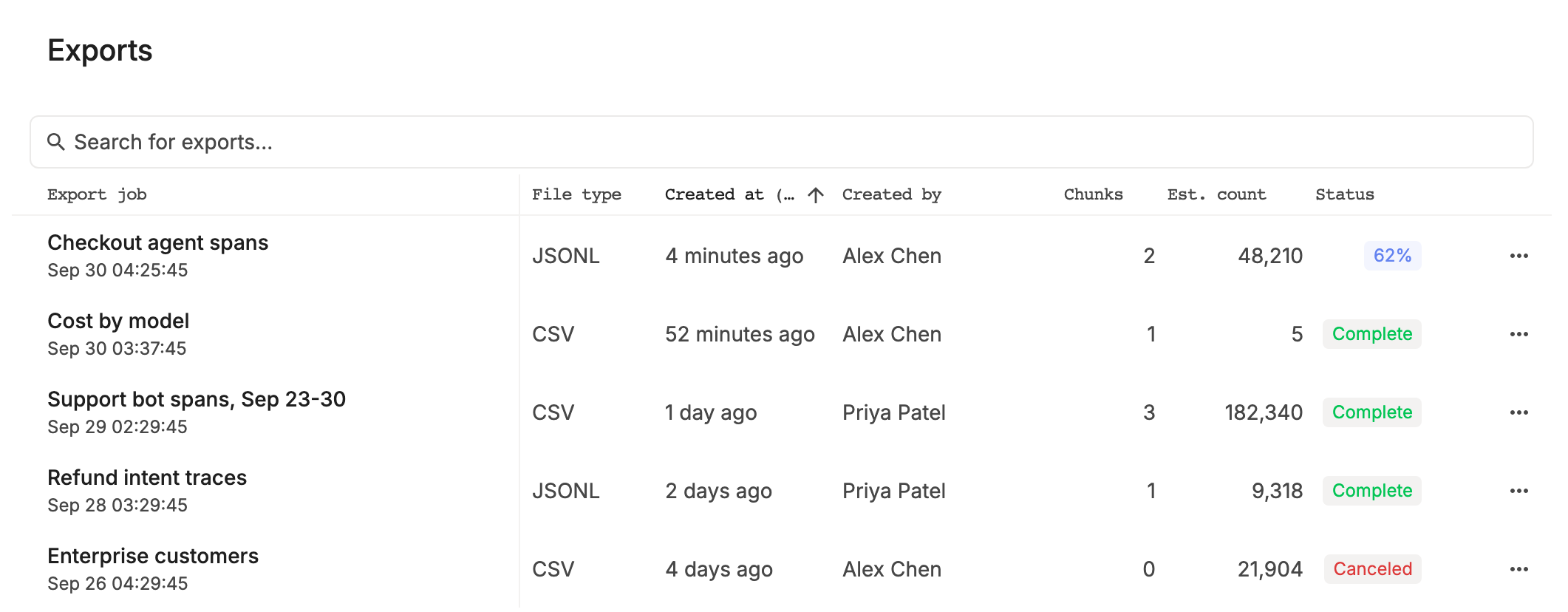
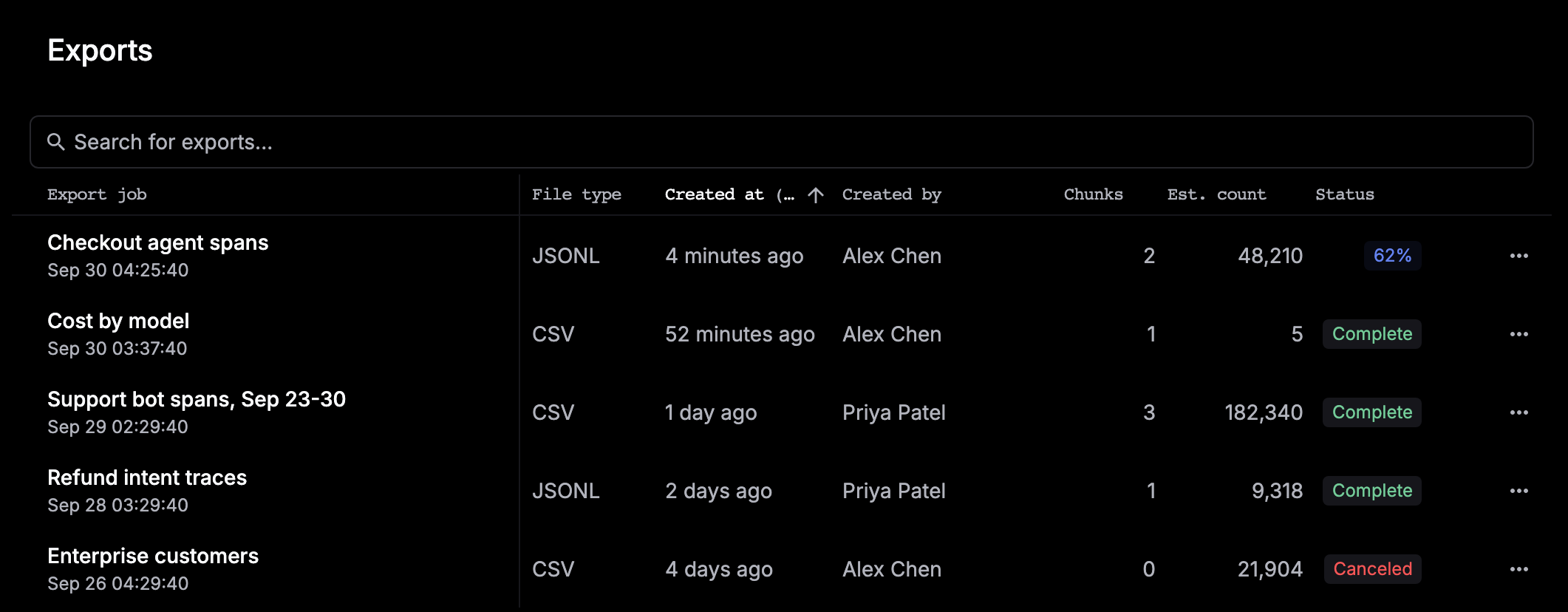
- Click a job to open Export details, then click Download all, or Download as URLs for a text file with one link per file. Large exports are split into several files (Chunks).
- The ⋯ menu has Download as URLs, Cancel (while a job runs), and Delete.
- A warning icon next to the status explains rows the export left out, such as logs beyond the Free plan’s visible-log limit.
- Expired means the files are gone. Run the export again.