

Monitors & notifications
A monitor watches one metric, such as error rate, cost, latency, tokens, or volume, over a rolling window. When the metric crosses your threshold, Respan sends an alert to every destination you picked. To find a sensible threshold first, look at the trend in Metrics.
Create a monitor
Open Monitors
Go to Observability › Monitors and click New monitor, or press C. Respan creates an Untitled monitor and opens it. To rename it later, open the row’s ⋯ menu and choose Edit title & description.
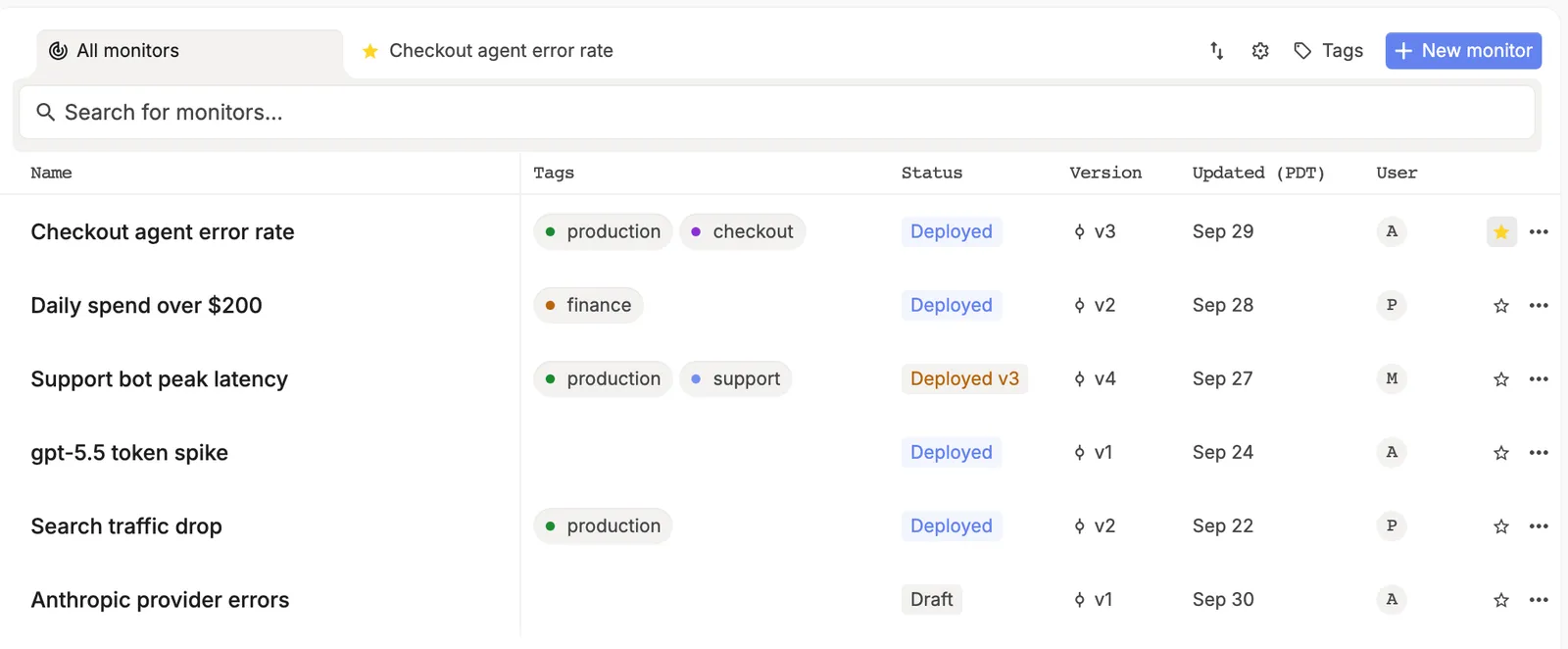
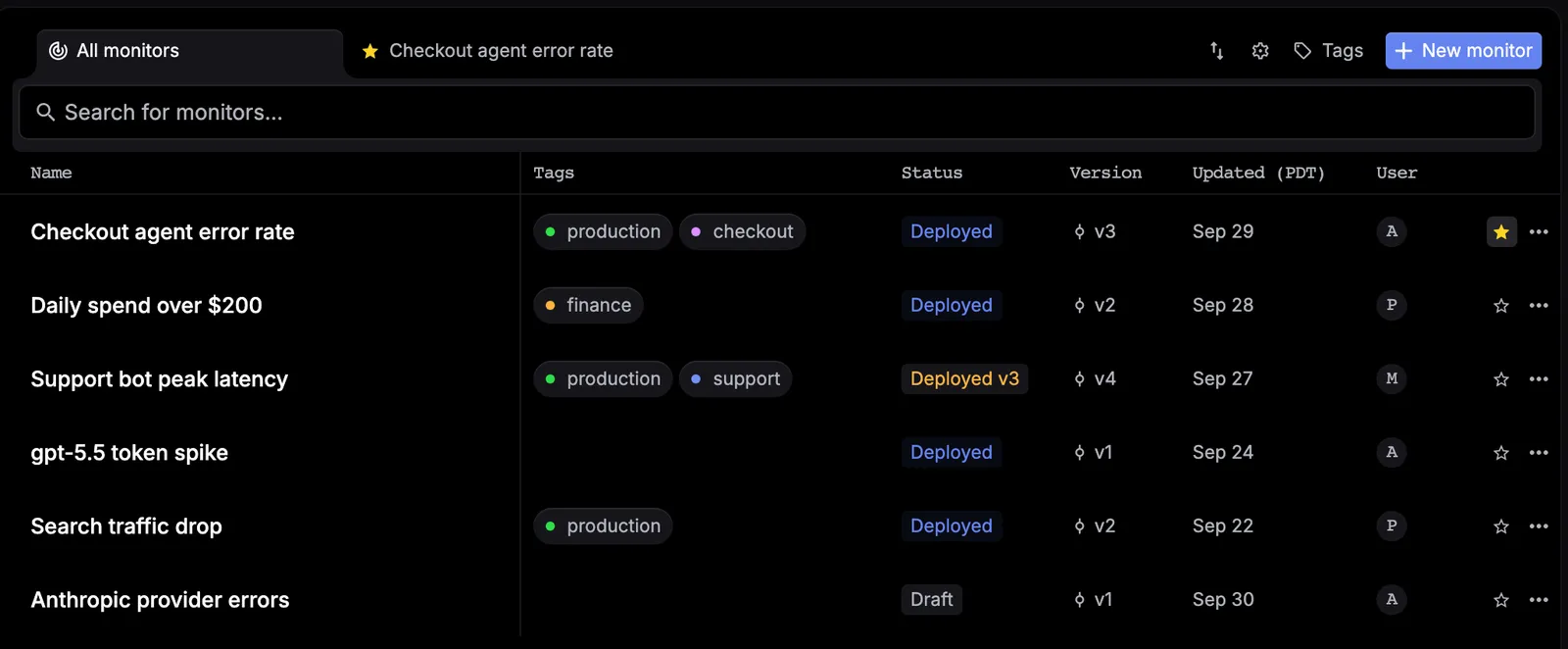
Status shows Draft until you deploy, and Deployed when the latest version is live. A version number, such as Deployed v3, means an older version is live and newer versions aren’t deployed yet.
Set the trigger
Under Trigger, the When row reads as a sentence: metric of source, operator, threshold, over window. The example below alerts when more than 5% of gpt-5.5 spans fail in a 15-minute window.
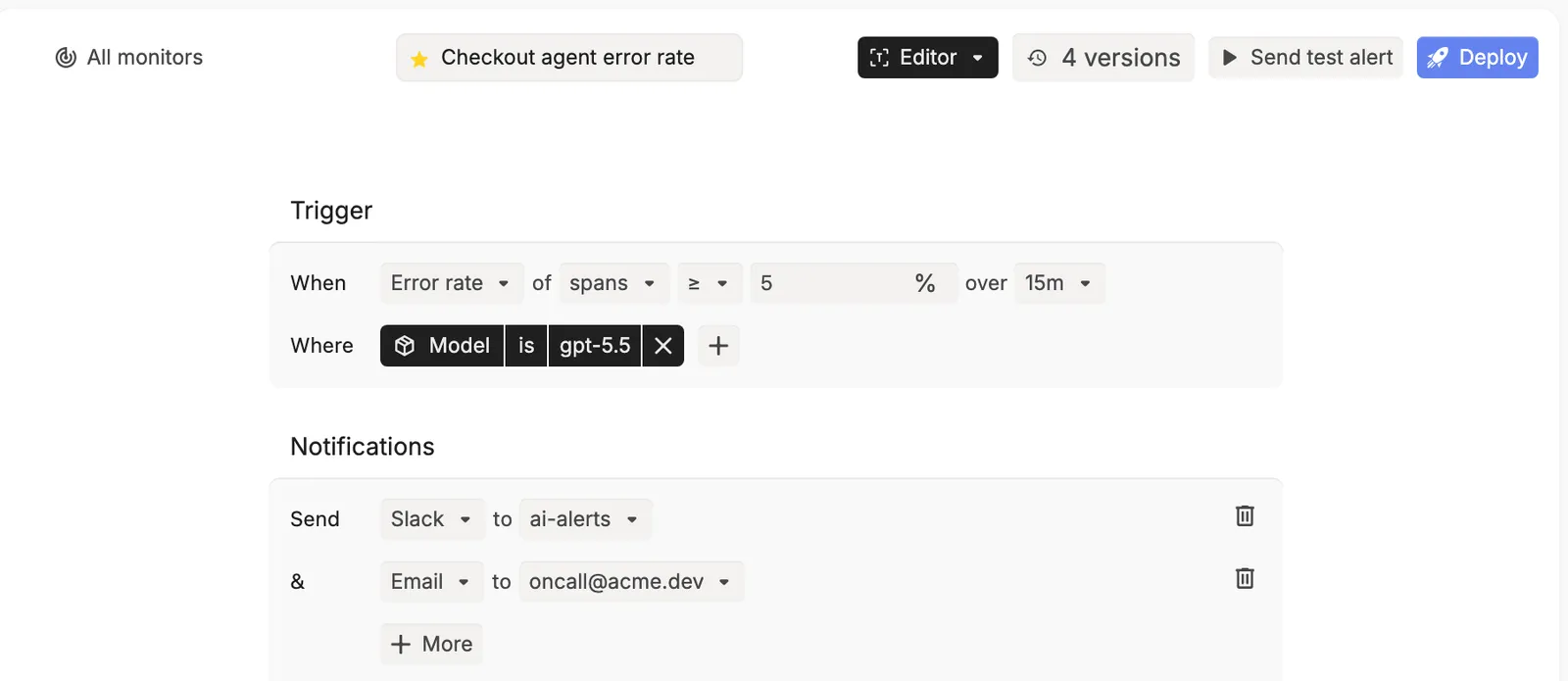
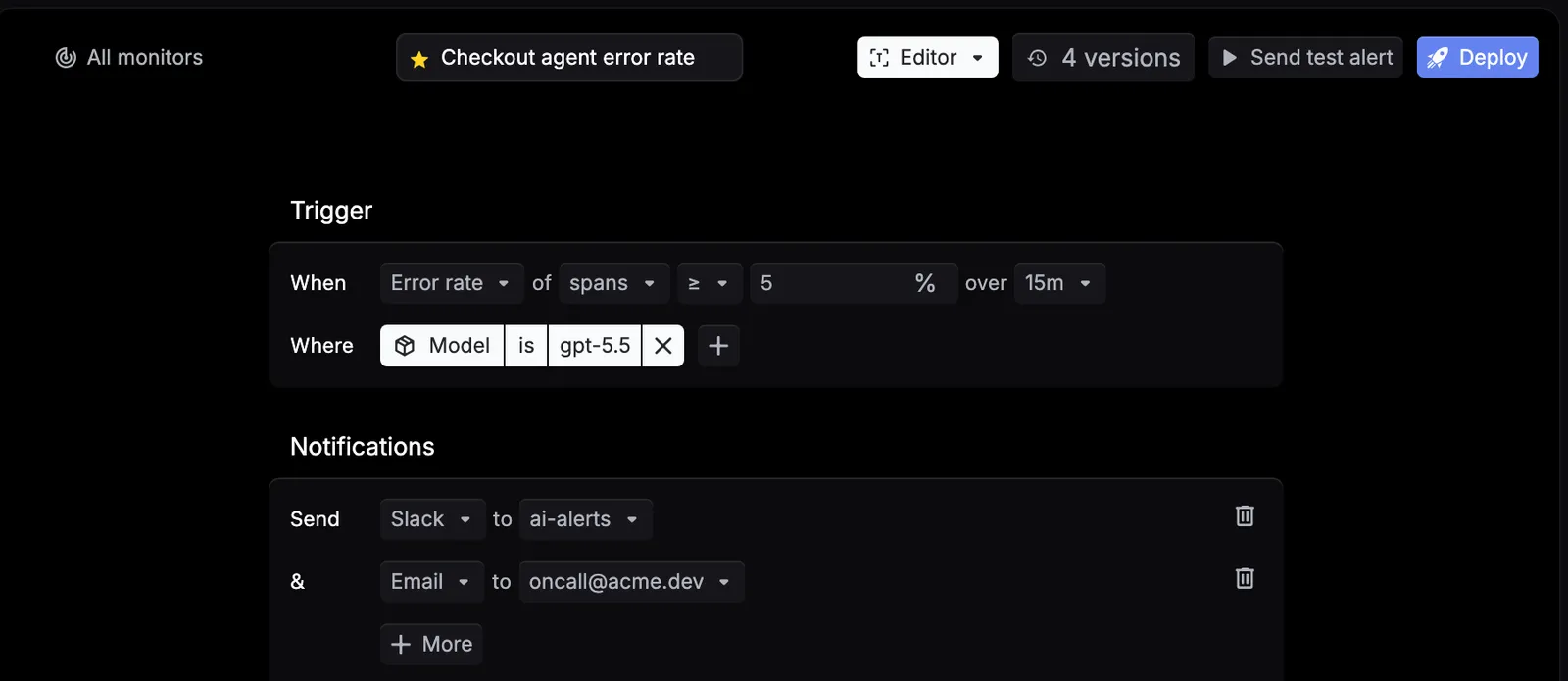
Cost thresholds are in dollars, latency in seconds, and error rate in percent.
Click + next to Where to count only matching spans or traces. You can filter by API key, Model, Provider, Customer ID, Prompt, Behavior, Error issue, Error type, Fault domain, or a custom metadata field.
Choose where alerts go
Under Notifications, pick a channel on the Send row, then its destination. Click More to add another destination.
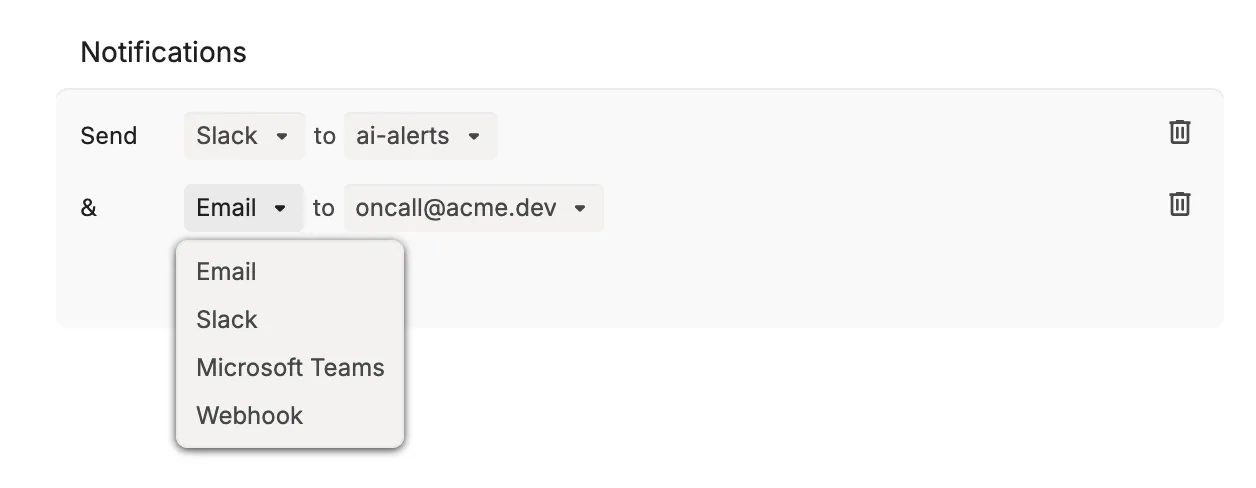
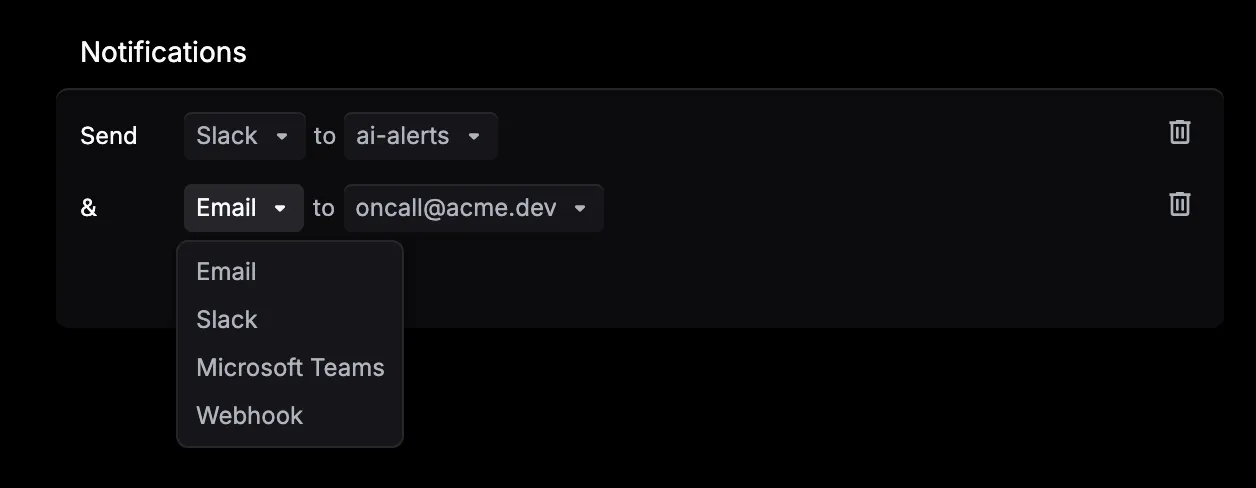
The preview below the destinations shows the alert Respan sends: the value that crossed the threshold, the totals for the window, and the top users, API keys, and models behind it. Error monitors also get a short summary of what failed. You can’t edit the alert text.
Test and deploy
Your edits save to a draft as you go. Click Send test alert to check that the alert reaches your destinations.
Click Deploy in the top bar, add an optional note in the Deploy version dialog, and click Deploy. Deploy stays disabled until the threshold is set and every destination is filled in.
Once deployed, the monitor checks every window and sends at most one alert per window, so a 15-minute monitor alerts at most every 15 minutes.
You can also create a monitor from a chart in Metrics, an error group, or a behavior. Those monitors start as drafts, so review them and deploy.
Pause, resume, or roll back
Every deploy saves a version. Click the versions button in the top bar (⇧ H) and select a version:
- On the live version, click Pause to stop alerts. Click Resume to turn them back on.
- On an older version, click Deploy to make it live again.
⇧ D deploys, pauses, or resumes the selected version. If you edit an old version while a draft exists, Respan asks before it overwrites the draft.
Check a monitor’s runs
Switch the Editor dropdown to Metrics to see each run of the monitor over time and open the spans behind it. JSON shows the workflow configuration the editor generates.
Monitor webhooks send alerts. To stream every span to your own endpoint instead, use Data webhooks.