
Datasets
Set up Respan
- Sign up — Create an account at platform.respan.ai
- Create an API key — Generate one on the API keys page
- Add credits or a provider key — Add credits on the Credits page or connect your own provider key on the Integrations page
Use AI
Add the Docs MCP to your AI coding tool to get help building with Respan. No API key needed.
What is a dataset?
A dataset is a collection of test inputs (and optionally outputs) that you use to run experiments. Each row represents one test case. You can build datasets from production spans or upload a CSV. Datasets power both offline experiments and evaluator testing.
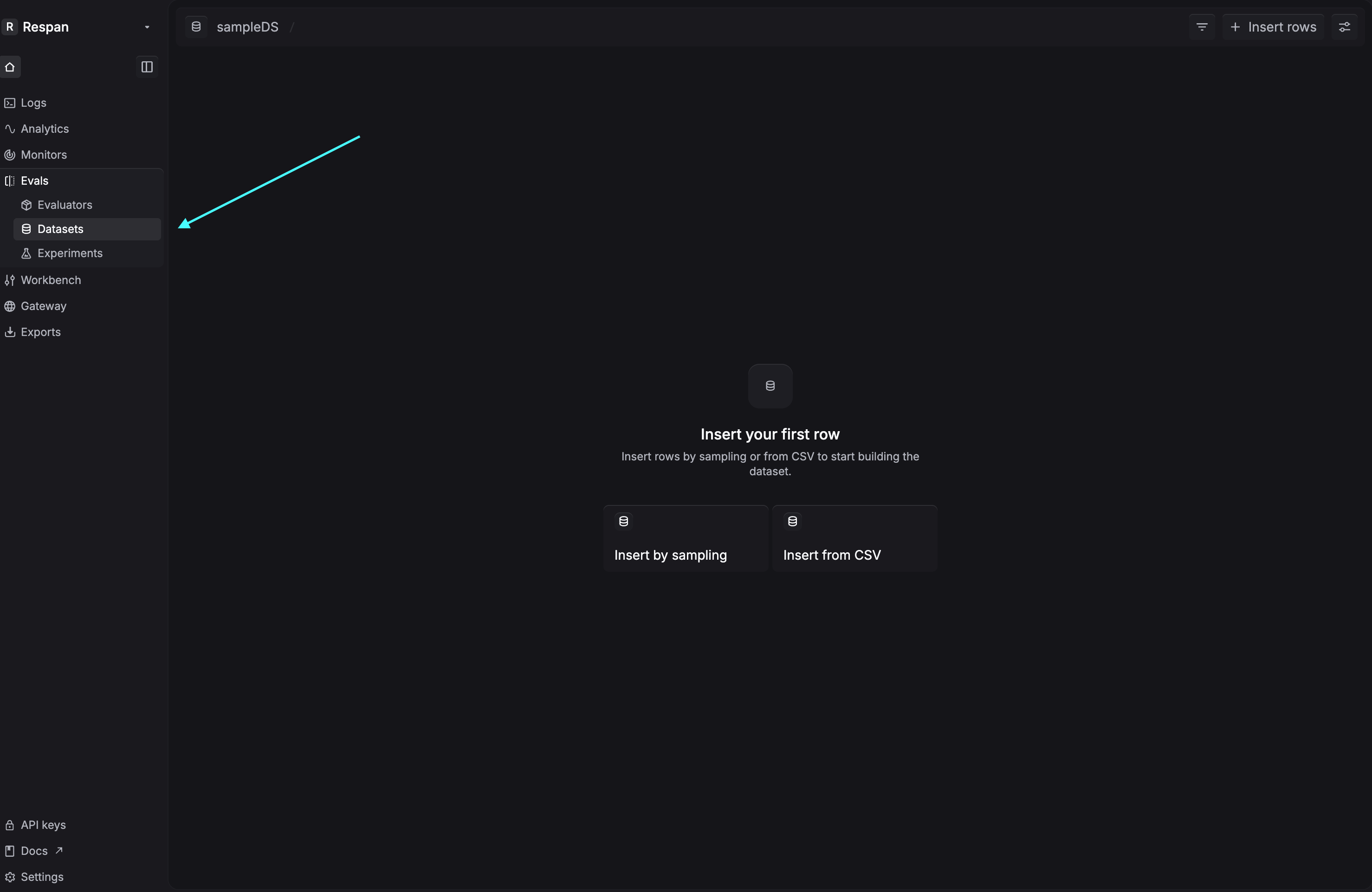
In the current UI, clicking Create dataset always creates an empty dataset first. After you open the dataset detail table page, click Insert rows to populate it in one of two ways:
- Insert by sampling
- Insert from CSV
Create a dataset
Start by creating an empty dataset. Then use Insert rows inside the dataset detail table page to add rows.
Insert by sampling
Sample request logs and add them as rows to an existing dataset. Use filters, a time range, and a sampling percentage to control what gets inserted.
Via UI
Choose Insert rows > Insert by sampling
In the dataset detail table page, click Insert rows and select Insert by sampling.
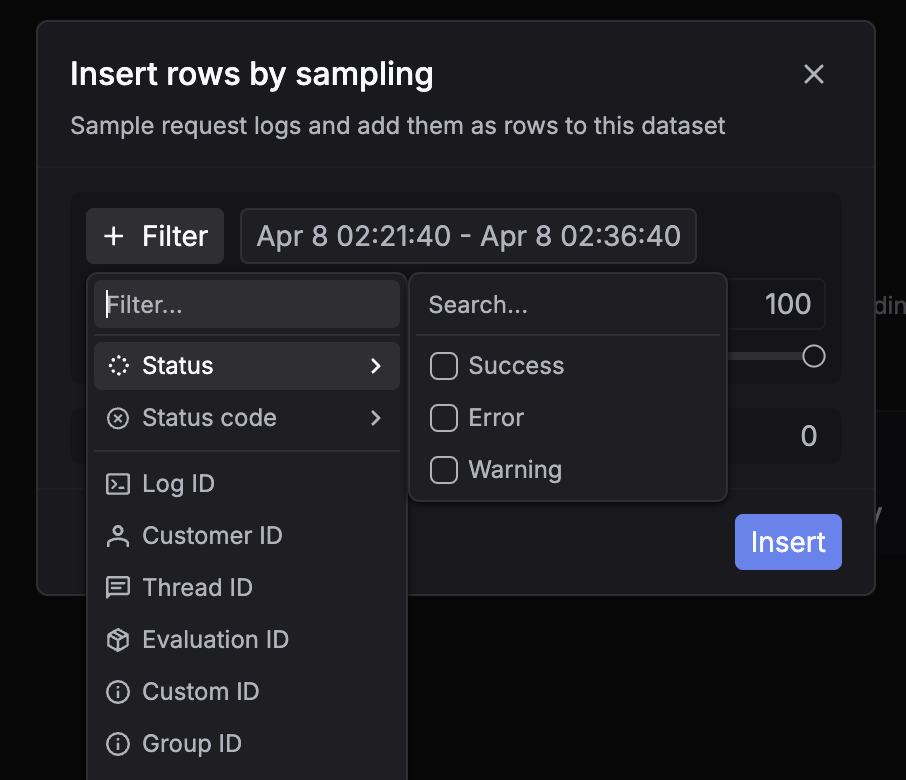
Add filters and choose a time range
In the modal, click + Filter to narrow down which request logs to sample. You can filter by fields such as status, model, or metadata, then choose the time range to pull from.
Set the sampling percentage and review estimated rows
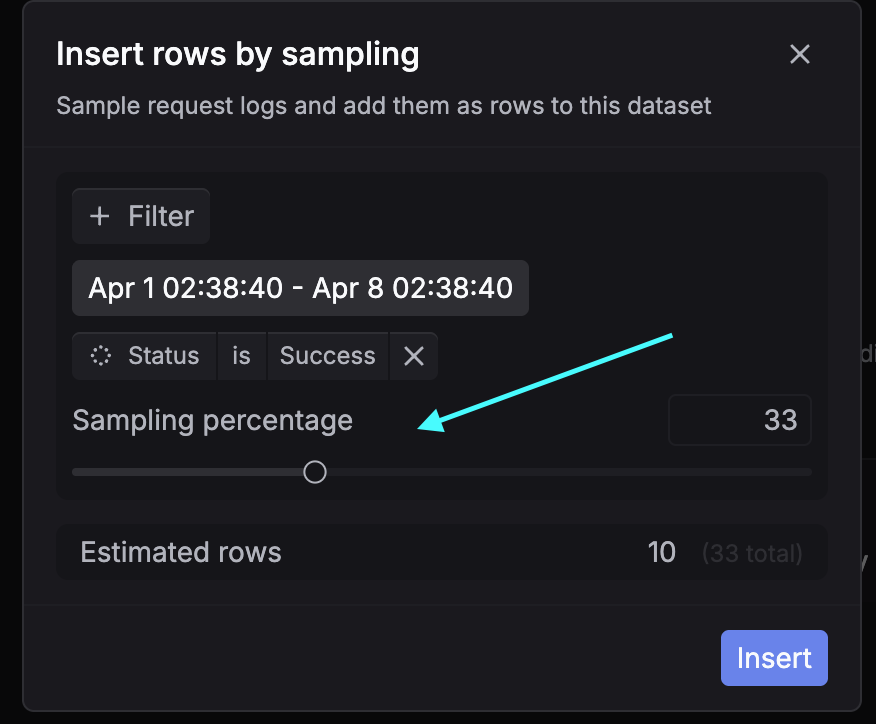
Adjust the Sampling percentage to control how many matching logs are inserted. The modal also shows Estimated rows so you can preview how many rows will be added before confirming.
Insert from CSV
Upload rows from a CSV file into an existing dataset.
Step 1: Insert the CSV file
In the dataset detail table page, click Insert rows and select Insert from CSV. Then select the file from your computer.
Once the file is uploaded, Respan takes you to the field mapping step.
Step 2: Map all fields from the CSV
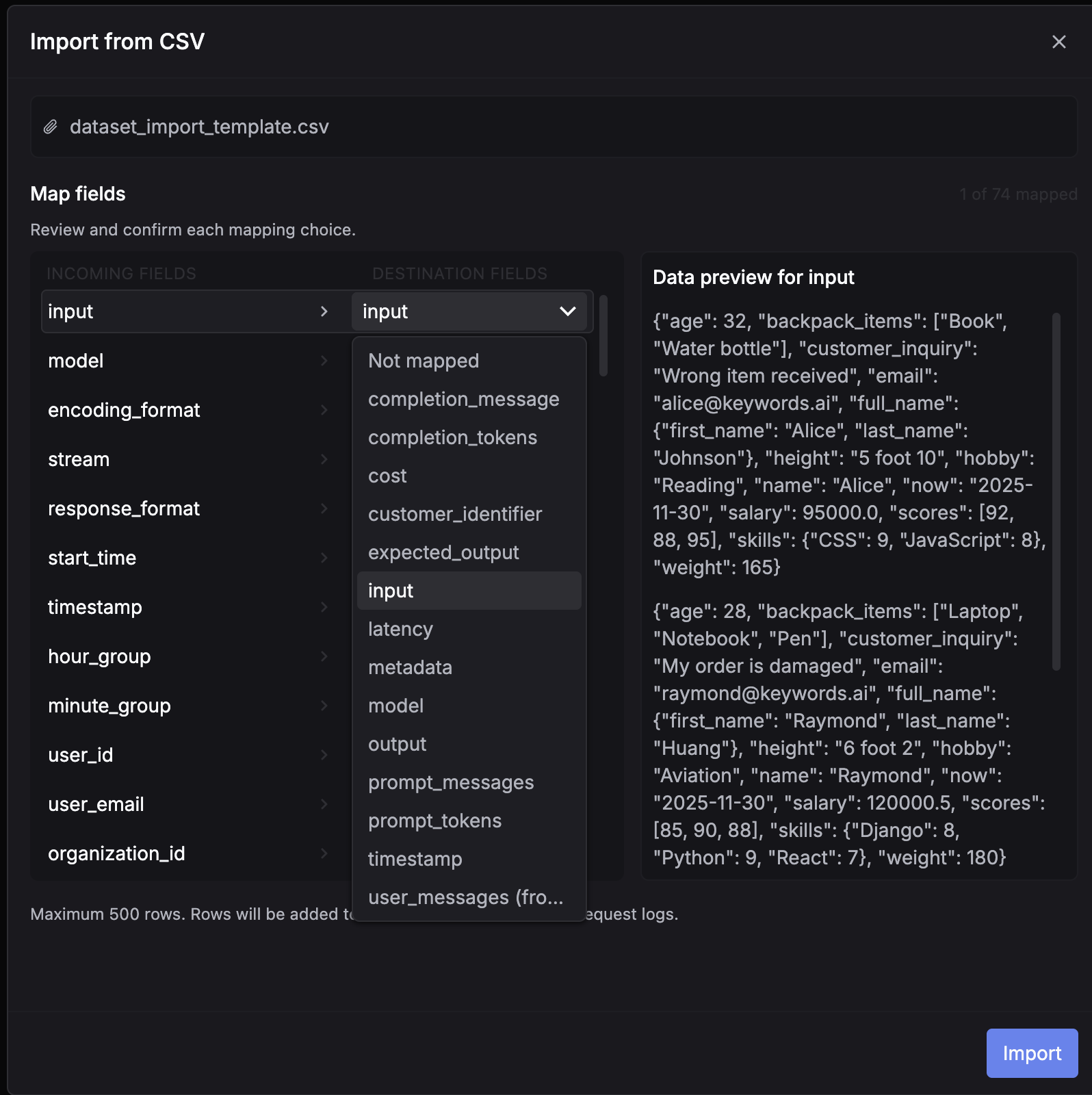
After the file is uploaded, review every field under Incoming fields and map it to the correct Destination field in the dataset.
For each CSV column, choose the matching dataset field from the dropdown. Use the preview panel on the right to confirm the selected field contains the expected values. If a column should not be imported, leave it as Not mapped.
You can map multiple CSV columns to input. When you do, Respan wraps those columns into a single input object, using the original CSV column names as JSON keys and the CSV cell values as the corresponding values.