

Providers & models
Providers & models
Set up Respan
- Sign up — Create an account at platform.respan.ai
- Create an API key — Generate one on the API keys page
- Add credits or a provider key — Add credits on the Credits page or connect your own provider key on the Integrations page
Use AI
Add the Docs MCP to your AI coding tool to get help building with Respan. No API key needed.
Respan supports models across major providers. This page covers how to choose between them per request, override provider credentials, and create custom model aliases. Use the model catalog for the current inventory and billing mode.
Inline router (models)
Pass an inline list of candidate models per request and let the LLM router pick one. This is the request-time alternative to a pre-configured load_balance_group (see Load balancing).
The selected model is recorded on the log under model.
Per-model credential override (credential_override)
Override credentials for a specific model on a single request. More granular than customer_credentials (which applies per provider). Useful when one model in a fallback chain needs different credentials than the rest.
The key is the full model slug (azure/gpt-4o, vertex_ai/claude-sonnet-4-5@20250929, etc.). Each fallback attempt resolves credentials per-model.
Pin a provider
Use the X-Respan-Route-Provider header to route a request to a specific provider without changing the model slug. Useful when a CLI agent or SDK sends a fixed slug (e.g. claude-sonnet-4-5-20250929) and you want to route it to Vertex AI, Bedrock, or another provider.
Custom model aliases
Sometimes you may want to:
- Use your own naming conventions (aliases) for existing models.
- Add a newly released model from a supported provider before we’ve listed it.
Create a custom model in your model list to do either.
Why use a custom model?
Custom models let you create multiple aliases for the same underlying model.
This is useful when:
- Different use cases: Reuse the same base model but track usage separately.
- Analytics: Monitor usage by alias, not just the raw model name.
- Try new models before we’ve listed them.
How to create a custom model
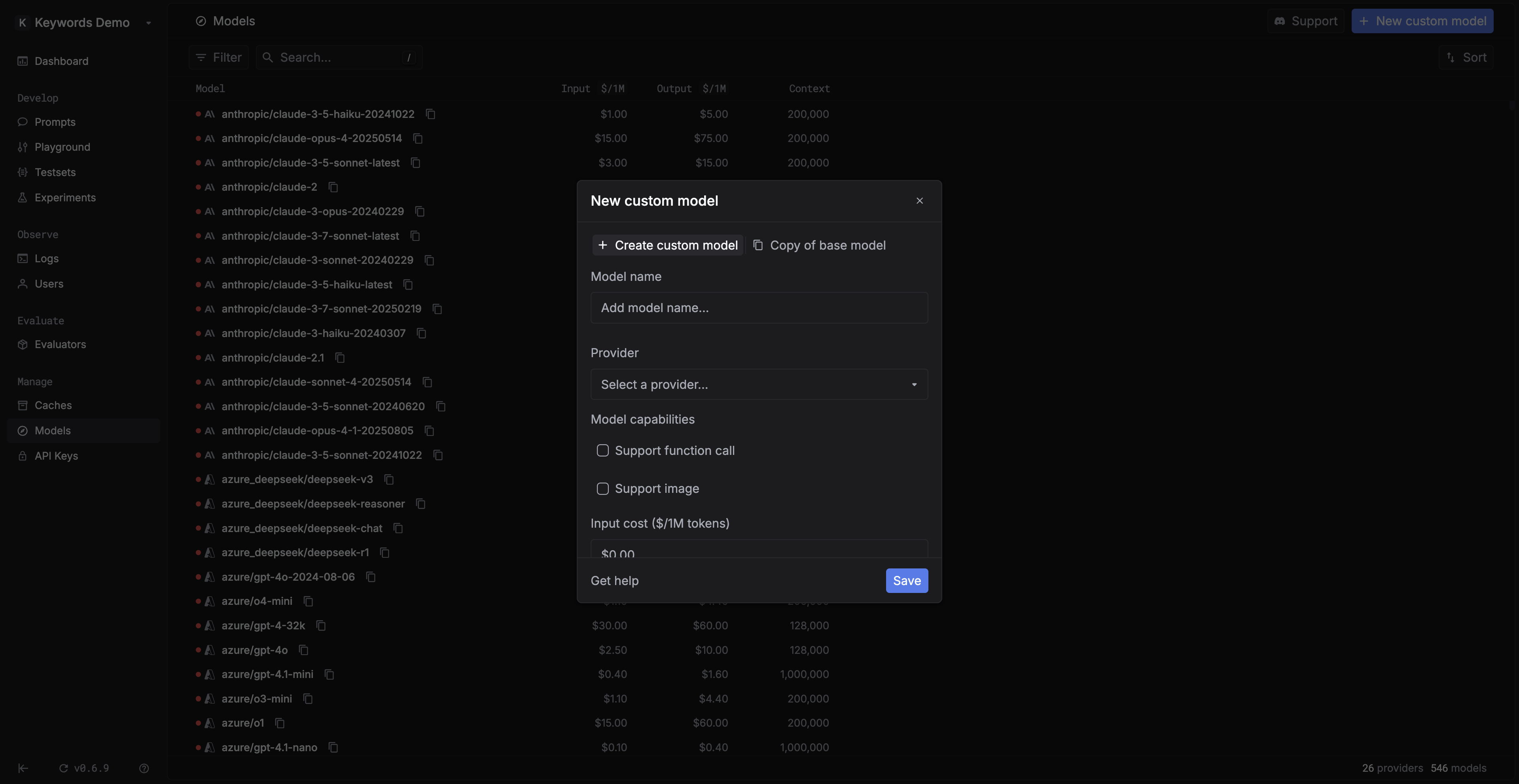
- Go to the Models page and select
+ Create custom model. - Fill out the form: model name, provider, costs, modality, etc.
- Save. Your custom model will now appear in the model list.
- Copy the model ID and use it in your code.
Copy from a base model
Instead of starting from scratch, you can also copy a base model and give it a new name. This saves time if you just want multiple aliases of the same model without reconfiguring everything.
FAQ
Can I use a custom model in the LLM Gateway? Yes, as long as it maps to a valid provider model. Example: if OpenAI launches gpt-6, you can add it as a custom model and immediately call it through the AI Gateway.
When should I use “copy base model”? Think of it as a preset. It’s the fastest way to create aliases without re-entering configuration details.