Caching
Answer repeated requests from a stored response, and track your provider's prompt caching.
With caching on, Respan stores the response to a request and returns it when the same messages come in again, so the repeat skips the model call and its cost. Use it for prompts that repeat exactly, such as FAQ answers or fixed classification prompts. Your provider’s own prompt caching works differently and needs no Respan setting. See Provider prompt caching.
Turn on caching
Add cache_enabled and cache_ttl to a gateway request:
import os
from openai import OpenAI

client = OpenAI(
    base_url="https://api.respan.ai/api/",
    api_key=os.environ["RESPAN_API_KEY"],
)

response = client.chat.completions.create(
    model="gpt-5.5",
    messages=[{"role": "user", "content": "How do I reset my password?"}],
    extra_body={
        "cache_enabled": True,
        "cache_ttl": 86400,  # keep the response for one day
    },
)The first request calls the model and stores its response. Until the entry expires, every request with cache_enabled and the same messages gets the stored response back.
Respan matches on the messages only. Other parameters, such as model or temperature, aren’t part of the match, so the same messages sent to another model get the stored response. Use cache_options to keep separate entries:
| Parameter | Type | What it does |
|---|---|---|
cache_enabled | boolean | Turns caching on for the request. |
cache_ttl | number | How long the stored response can be reused, in seconds. Without it, the response is reused for at most 30 minutes. |
cache_options.cache_by_customer | boolean | Keeps a separate entry for each customer_identifier. Default false. |
cache_options.is_cached_by_model | boolean | Keeps a separate entry for each model. Default false. |
cache_options.omit_log | boolean | Skips the log for a cache hit. Overrides the organization setting in Skip logging cache hits. |
See and manage caches
Go to Gateway › Caches.
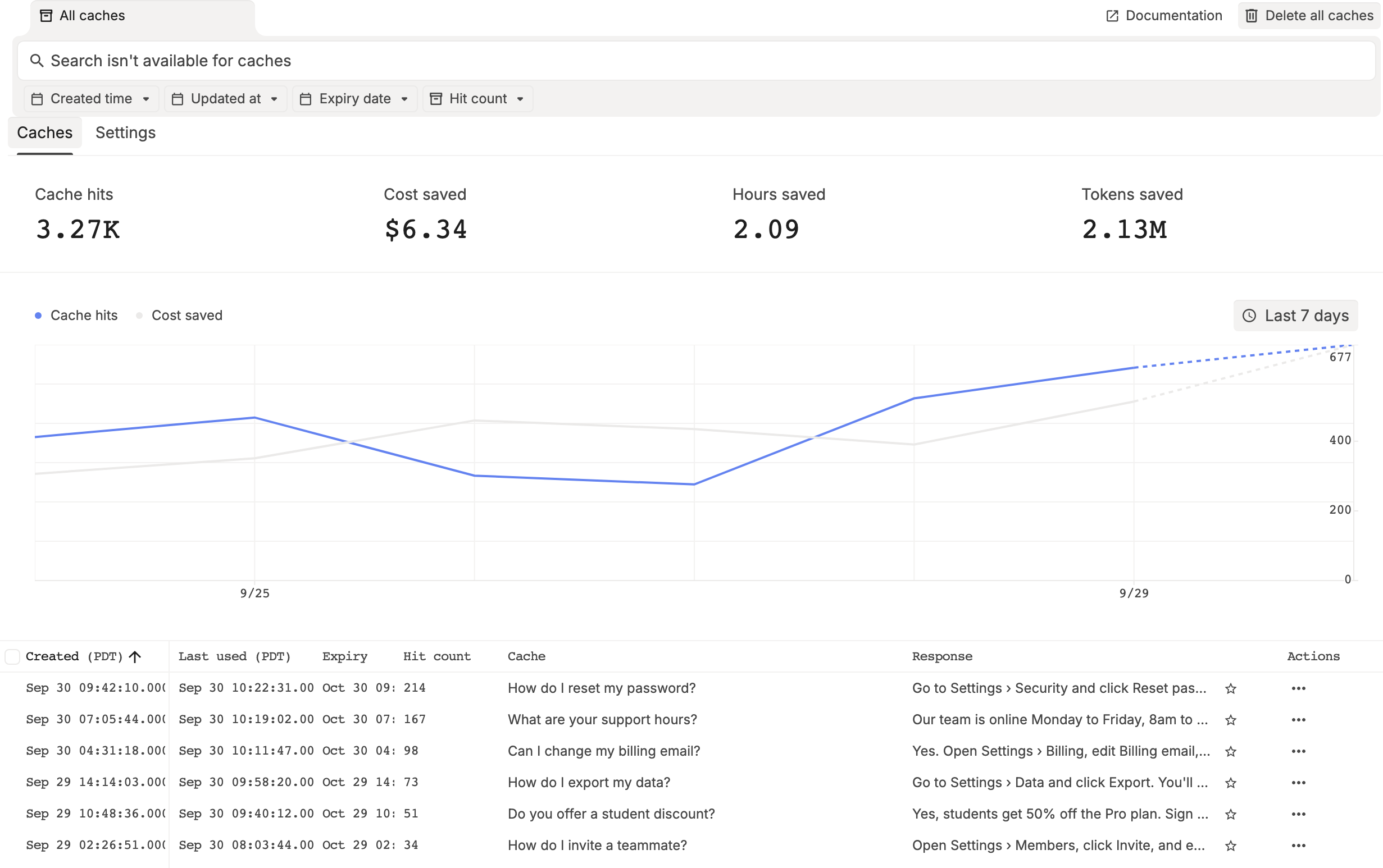
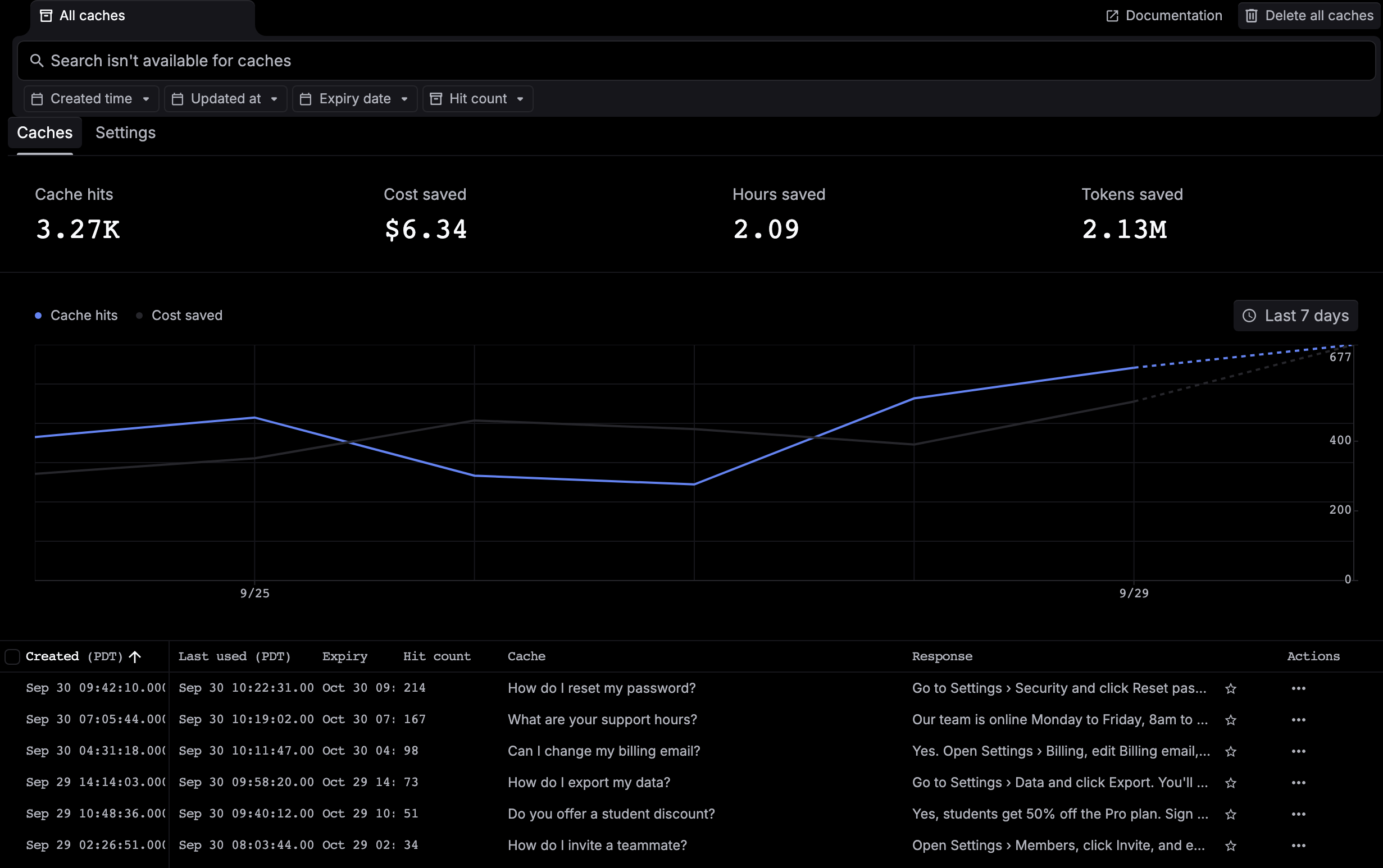
- The top row totals Cache hits, Cost saved, time saved and Tokens saved across all time. The chart shows cache hits and cost saved for the range you pick.
- Each row is one stored response, with its Hit count, its Expiry, the request (Cache) and the Response. Filter the list by Created time, Updated at, Expiry date or Hit count.
- Click a row to see the stored messages. To change what later hits return, edit the response and click Save.
To delete stored responses:
- One: open the row’s ⋯ menu and click Delete cache.
- Several: check the rows, click Delete in the bar at the bottom, and confirm.
- All: click Delete all caches at the top right, and confirm.
Deleting doesn’t turn caching off. The next matching request calls the model and stores a new response.
Find cache hits in Logs
Open a request in Gateway › Logs and go to the Metadata tab. For a cache hit, Cache hit reads Yes (Respan) and Cache key names the stored response.
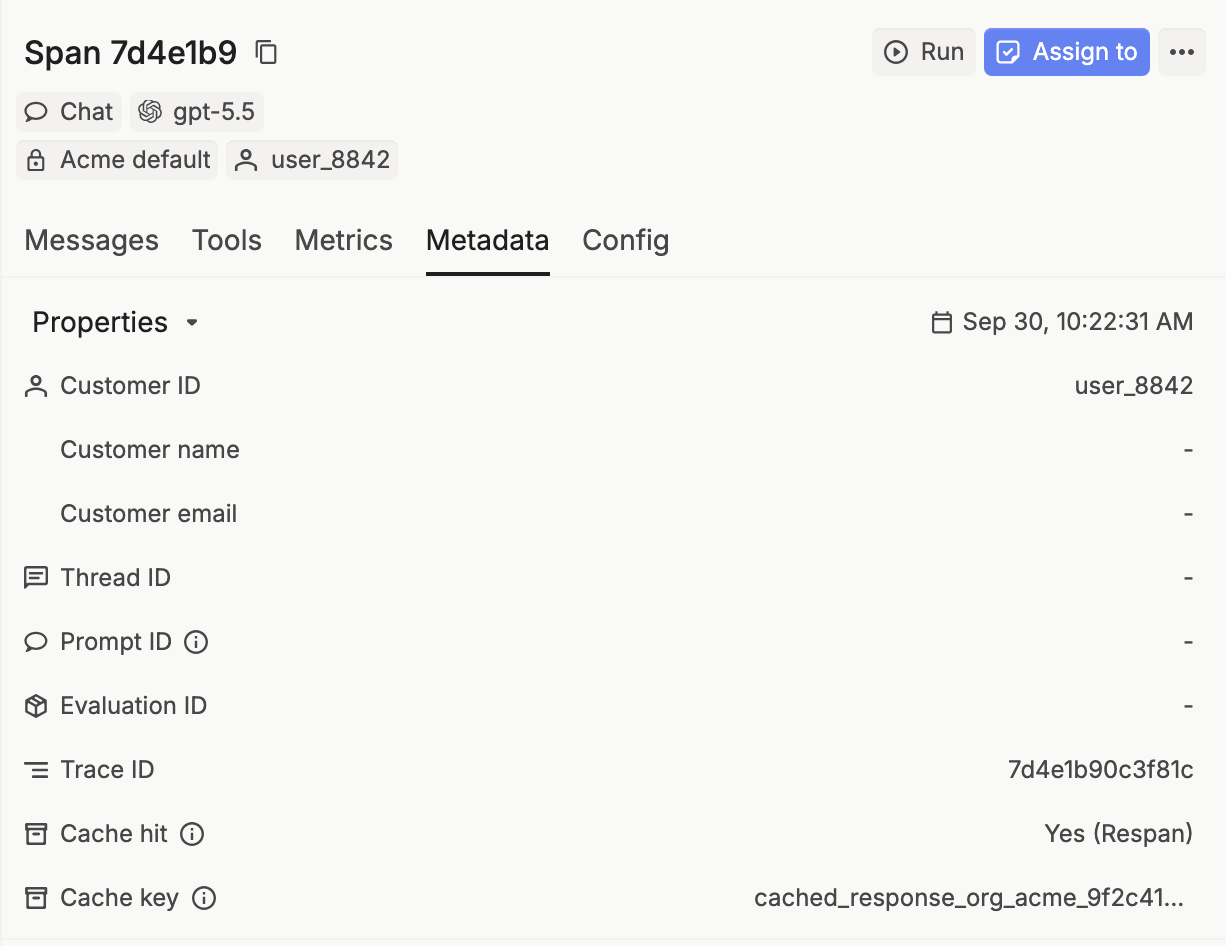
- To list every request served by that stored response, open the ⋯ menu at the top of the panel and click Filter by cache key.
- To list all cache hits, click More filters › Is cache hit.
Yes (Provider) means the provider’s prompt cache served part of the prompt instead. See Provider prompt caching.
Skip logging cache hits
Cache hits are logged like any other request. To stop logging them for your whole organization, go to Gateway › Caches › Settings and turn on Skip logging cache hits. This reduces logging costs and adds $100 a month to your bill. Only organization admins can change it.
To choose per request, set cache_options.omit_log to true or false. It overrides the organization setting.
If a request misses the cache
- Both requests need
cache_enabled: true, and their messages must match exactly. - The stored response may have expired. Check its Expiry on the Caches page. A response stored without
cache_ttlis reused for 30 minutes at most. - With
cache_by_customeroris_cached_by_model, the customer or model must match too. - If a hit doesn’t show up in Logs, check whether Skip logging cache hits or
omit_logis on.
Provider prompt caching
Prompt caching is done by the provider: it reuses the processed start of a long prompt, so repeat calls cost less and start faster, while the model still writes a new answer each time. Respan passes the request through and records the cached tokens on each log.
Turn it on
OpenAI caches long prompts automatically, so there’s nothing to add. For Anthropic, mark the end of the part to cache with cache_control:
import os
import anthropic

client = anthropic.Anthropic(
    base_url="https://api.respan.ai/api/anthropic/",
    api_key=os.environ["RESPAN_API_KEY"],
)

message = client.messages.create(
    model="claude-sonnet-4-5-20250929",
    max_tokens=1024,
    system=[
        {"type": "text", "text": "You answer questions using the Acme product handbook below."},
        {
            "type": "text",
            "text": "<the full handbook>",
            "cache_control": {"type": "ephemeral"},
        },
    ],
    messages=[{"role": "user", "content": "Which plan includes SSO?"}],
)Providers only cache prompts above a minimum length, so short prompts show no cached tokens.
Check cached tokens
Open the request in Gateway › Logs, go to the Metrics tab, and expand Tokens. Cache read is the part of the prompt served from the provider’s cache, Cache write is the part stored for later calls, and Uncached is the rest. The log’s Cost prices cached tokens at the model’s cache rates.
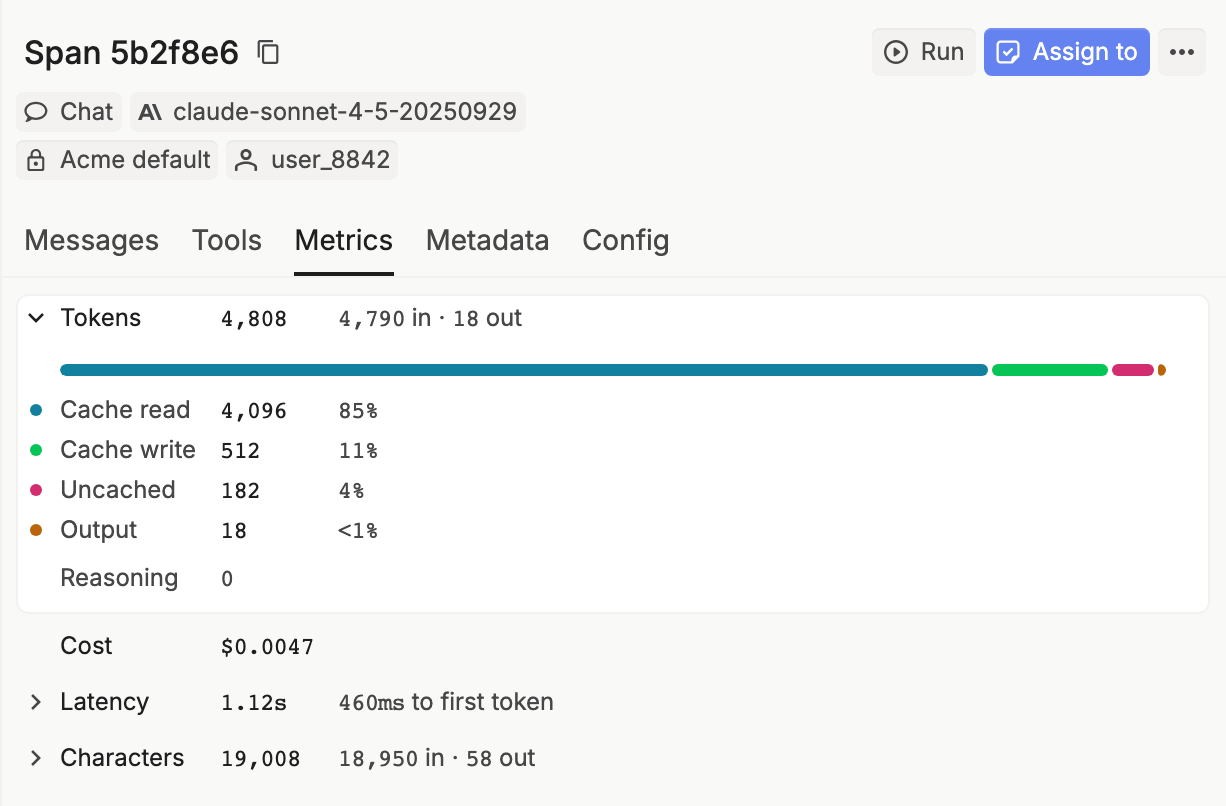
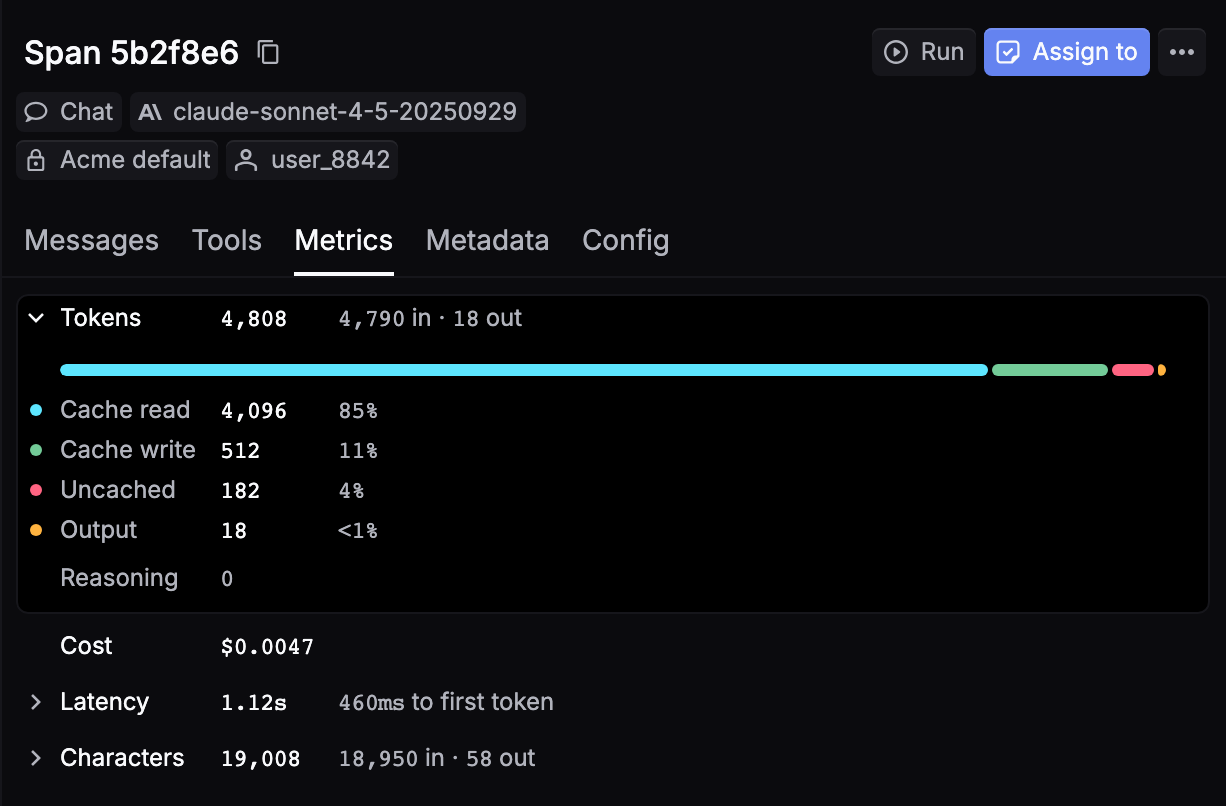
When the provider’s cache was read, the Metadata tab shows Cache hit as Yes (Provider), and the Provider cache column in the Logs table shows Cache hit.