Custom attributes
Tag requests with the session, user, record and properties they belong to, then group and filter by them.
Send these fields with any gateway request or traced span. Respan indexes them, so you can see every span of a conversation, a user, or a ticket.
| Attribute | What it is | Where you use it |
|---|---|---|
session_identifier | One conversation: chat_42 | The Sessions grouping and Session ID filter in Logs |
customer_identifier | Your end user: user_8f21 | Users & identifiers › Users, with budgets and rate limits |
custom_identifier | A record in your app, like a ticket or order: CS-1042 | Users & identifiers › Custom IDs, and the Custom ID filter in Logs |
metadata | Any other key-value pairs: {"feature": "support"} | Custom properties on the span, and the Custom property filter in Logs |
Send them
One request can carry all of them.
curl https://gateway.respan.ai/chat/completions \
  -H "Authorization: Bearer $RESPAN_API_KEY" \
  -H "Content-Type: application/json" \
  -d '{
    "model": "gpt-5.5",
    "messages": [{"role": "user", "content": "Draft a reply to ticket CS-1042."}],
    "session_identifier": "chat_42",
    "customer_identifier": "user_8f21",
    "custom_identifier": "CS-1042",
    "metadata": {"feature": "support"}
}'For the header and other ways to send them, see Respan params.
Logging spans with the API? These are top-level span fields. See Create span.
Sessions
A session is one conversation: every request and span with the same session_identifier, across as many traces as it takes. A call gets its session id from the first of these that applies:
- The
session_identifieryou send. Use the id your app already has, such as a chat or ticket id. - Your framework’s own conversation id, on supported integrations.
- A detected session, when you send
is_auto_session_enabled: true.
A call with none of these has no session. thread_identifier, the old name for session_identifier, still works. When a call sends both, session_identifier wins.
Use your framework’s conversation id
When you don’t set a session id, these integrations send the framework’s own conversation id as the session id. An empty id, or one longer than 255 characters, isn’t used.
| Framework | Package | Session id |
|---|---|---|
| LangChain and LangGraph (TypeScript) | @respan/instrumentation-langchain 1.2.0 or later | thread_id in the run config: { configurable: { thread_id } } |
| OpenAI Agents (Python) | respan-instrumentation-openai-agents 1.2.1 or later | The trace’s group_id: RunConfig(group_id=...) or trace(..., group_id=...) |
| OpenAI Agents (TypeScript) | @respan/instrumentation-openai-agents 1.3.0 or later | The trace’s groupId: RunConfig groupId or withTrace(name, fn, { groupId }) |
| Mastra | @respan/instrumentation-mastra 0.3.0 or later | The memory thread: memory: { thread } |
Let Respan detect sessions
If your app has no conversation id, send is_auto_session_enabled: true and Respan finds the session for you. It’s opt-in per call: only a JSON true turns it on, and the flag isn’t stored on the log. Calls that send a session id ignore it.
response = client.chat.completions.create(
    model="gpt-5.5",
    messages=history,  # the whole conversation so far
    extra_body={
        "customer_identifier": "user_8f21",
        "is_auto_session_enabled": True,
    },
)
It works on Chat Completions, Anthropic Messages and Responses requests, sent like any other Respan param. A response served from the gateway cache isn’t given a session.
How a call joins a session:
- Resent history. A call joins a session when its messages are an earlier call’s messages plus that call’s reply, which is what a chat app sends when it resends the history every turn. The earlier call must have the same project, environment and
customer_identifier, and be less than an hour old. Otherwise the call starts a new session. - Responses API. A call that sets
previous_response_idorconversationjoins the session of the response or conversation it continues. - The id. A detected session’s id starts with
auto_. Filter by it like any other session id. - What’s never grouped. Evaluation and judge calls. And if two users send the same conversation with no
customer_identifier, the next turn starts its own session rather than merging the two.
Find a session
In Observability › Logs, switch the grouping from Spans to Sessions. Each row is one session. To find one, click More filters, pick Session ID, and enter the id. Click a session to read the conversation.
Users
customer_identifier attributes a request to one of your end users. Respan keeps a record for each user: requests, tokens, cost, and activity. On gateway requests, you can also give each user a budget or a rate limit.
Add a name and email
Send customer_params instead of customer_identifier. Only customer_identifier is required. name and email fill the Name and Email columns the first time Respan sees the user. Later requests don’t change them.
{
  "customer_params": {
    "customer_identifier": "user_8f21",
    "name": "Maya Patel",
    "email": "maya@example.com"
  }
}
When tracing, pass customer_name and customer_email to propagate_attributes next to customer_identifier.
A user appears the first time Respan sees its identifier. Production and test API keys keep separate records for the same identifier.
Find a user
Open the users list
Go to Observability › Users & identifiers. The grouping reads Users.
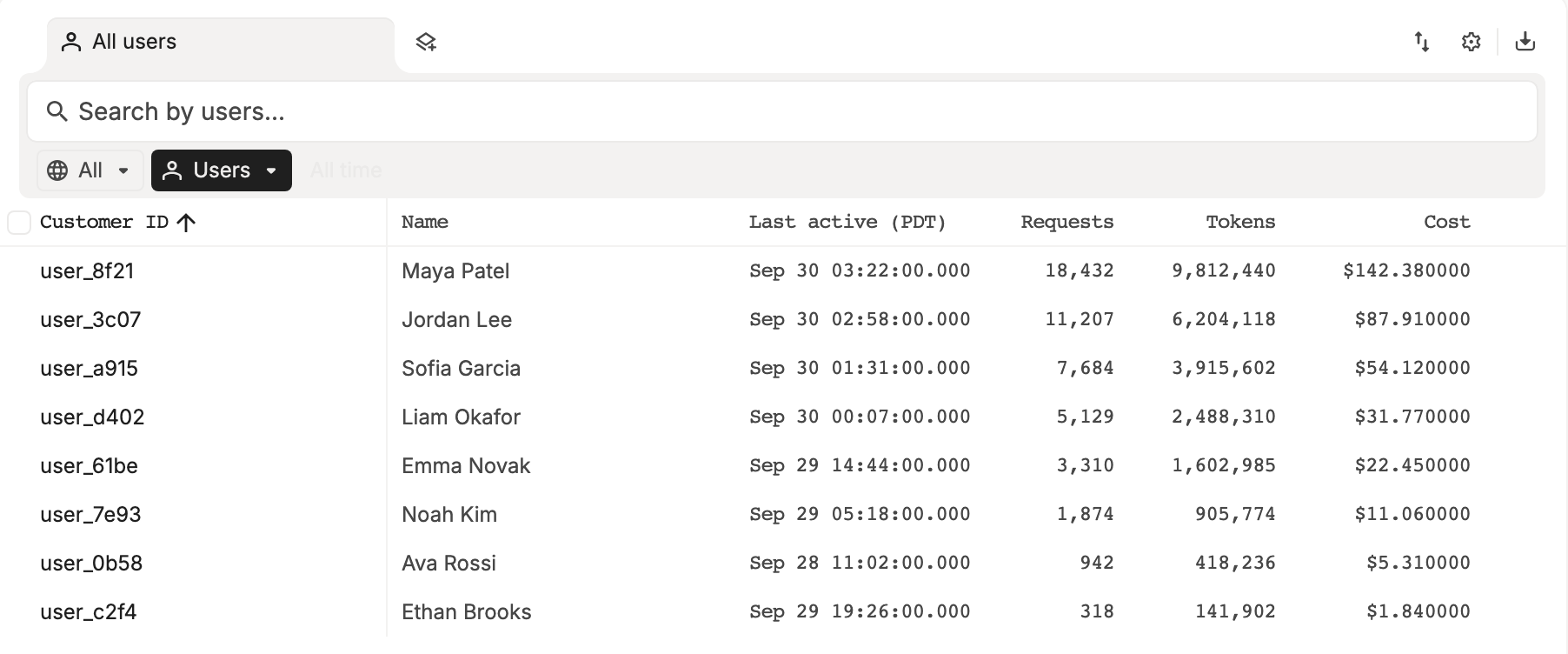
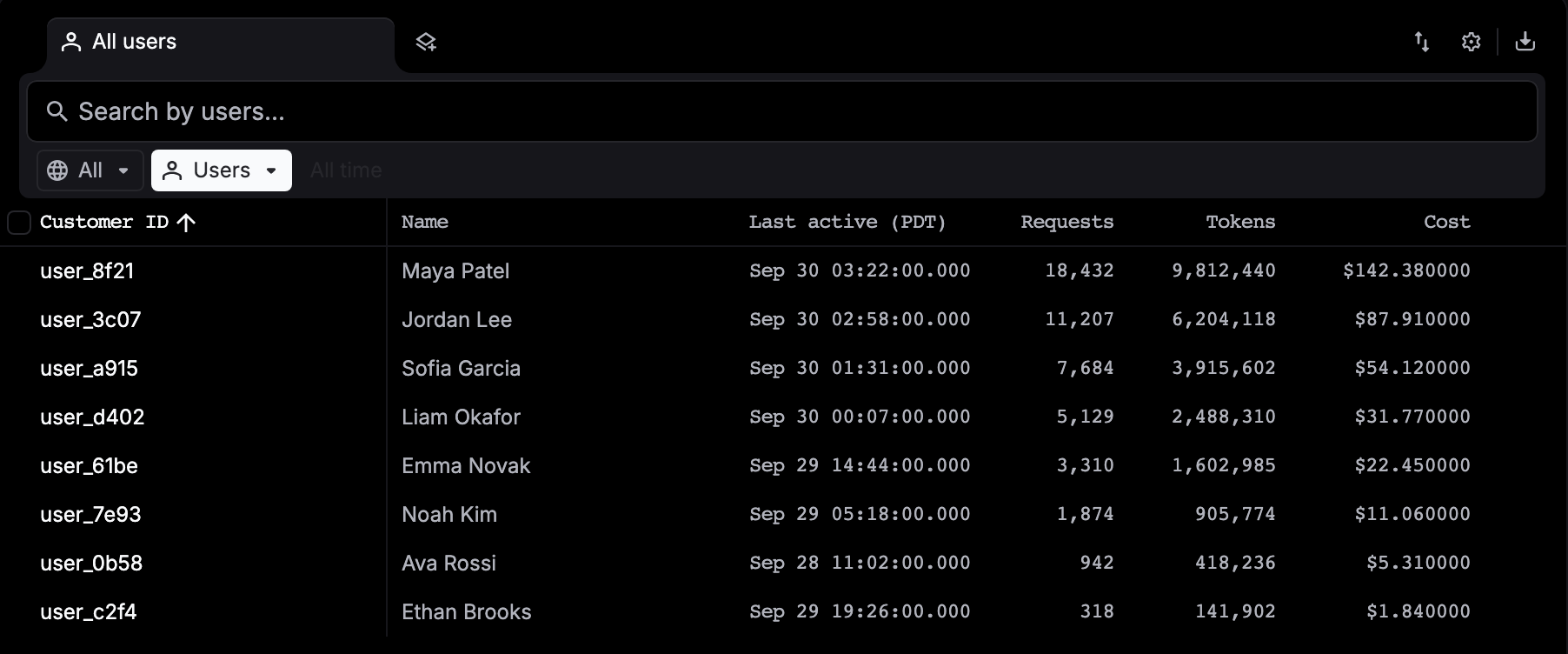
Each row is one customer_identifier with its name, email, first and last activity, requests, tokens, and cost, counted across all time. Type part of a customer ID, name, or email in Search by users… and press Enter. The environment switch shows All environments, Production or Test.
Open the user
Click a row. The panel shows Properties, Insights (first seen, last active, and the current budget period), Metrics (tokens, cost, period usage, average TTFT and generation time) and Budgets.
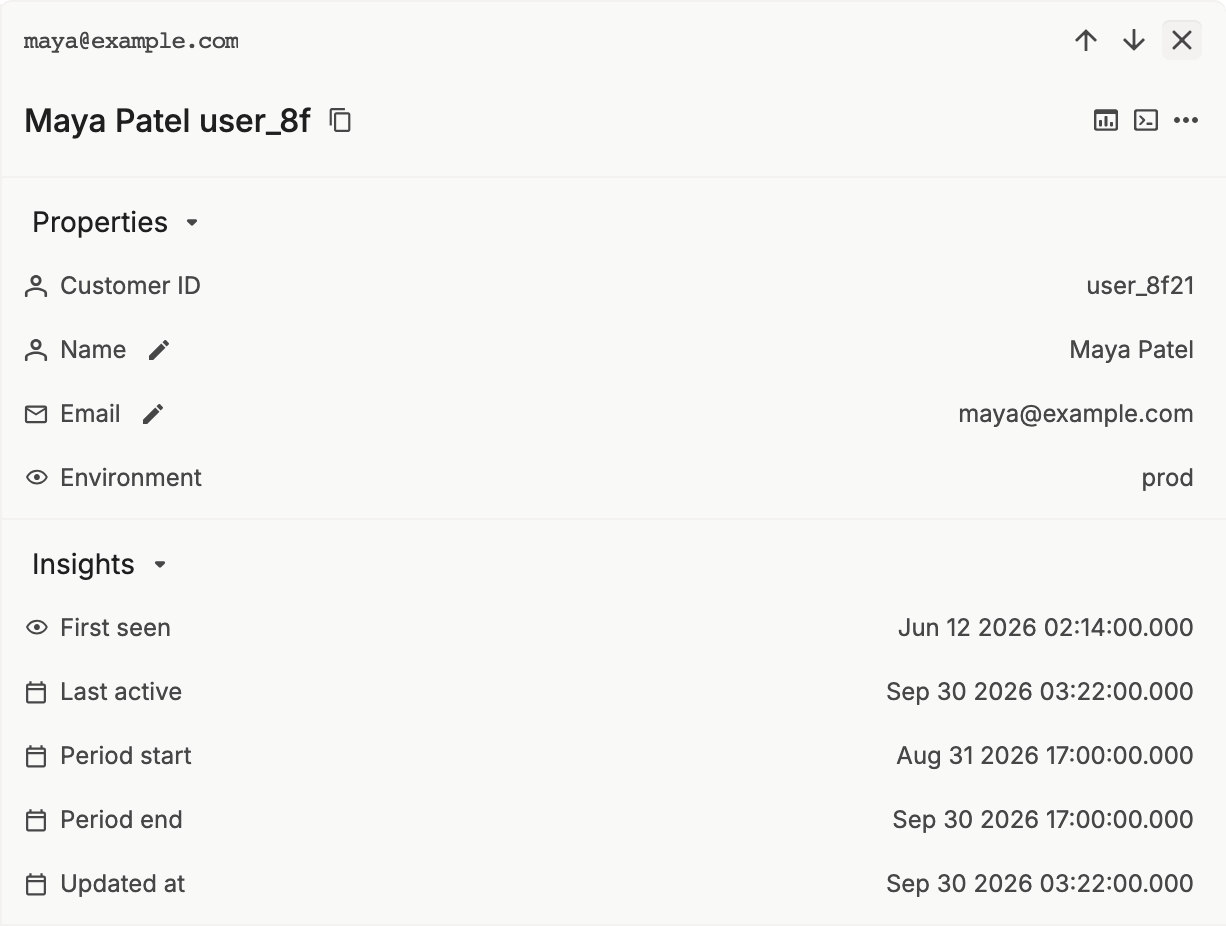
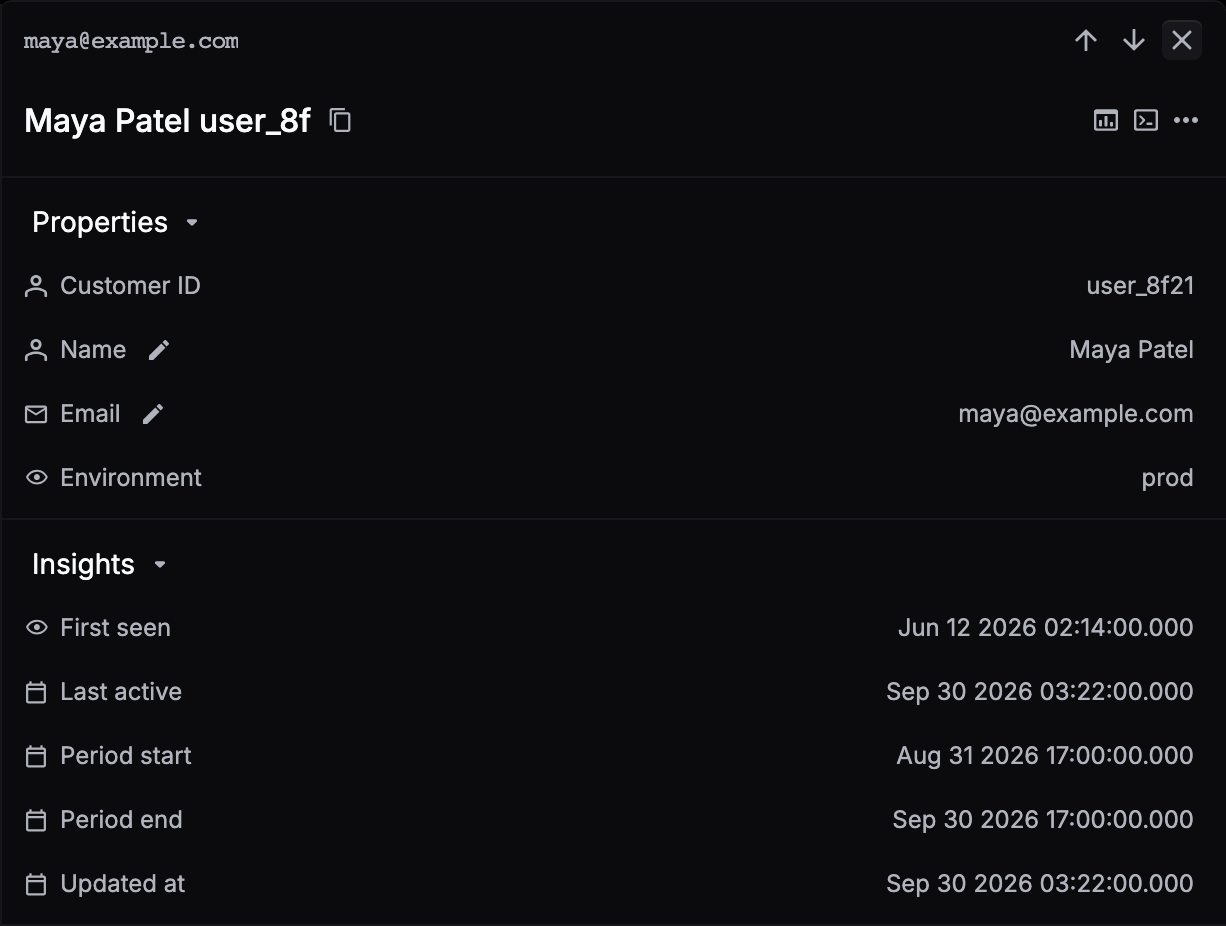
The icons in the panel header:
- Open in Dashboard (Shift+D) opens Metrics filtered to this user.
- Open in Logs (L) opens Logs filtered to this user’s spans.
- More actions › Delete user removes the record.
To fix a name or email, click the pencil next to Name or Email, type, and press Enter.
Set a budget
Budgets apply to gateway requests only. Once a user’s spend in the current period passes their Period budget, the gateway rejects their requests with a 402 error until the next period starts.
In Observability › Users & identifiers, click the user. Under Budgets, click the pencil next to Period budget, type an amount in USD, and press Enter. To remove the budget, clear the field and press Enter.


The budget period is monthly by default. To switch it to daily or weekly, or to set the budget from code, call Update a user with budget_duration or period_budget. Budget fields sent in a request’s customer_params aren’t applied.
For a rate limit that covers every user, see Limits.
Limit requests per user
Rate limits apply to chat completions requests (/api/chat/completions). Add rate_limit, in requests per minute, to customer_params. Requests over the limit get a 429 error. Without it, the Customer rate limit (requests/min) set in Limits applies.
extra_body={
    "customer_params": {
        "customer_identifier": "user_8f21",
        "rate_limit": 60,
    }
}
Custom IDs
custom_identifier ties a request to a record in your app, like a ticket, order, or document.
Send custom_identifier as its own field. A custom_identifier key inside metadata is only a custom property, and doesn’t show up under Custom IDs.
Compare custom IDs
Switch to Custom IDs
Go to Observability › Users & identifiers and switch the grouping from Users to Custom IDs.
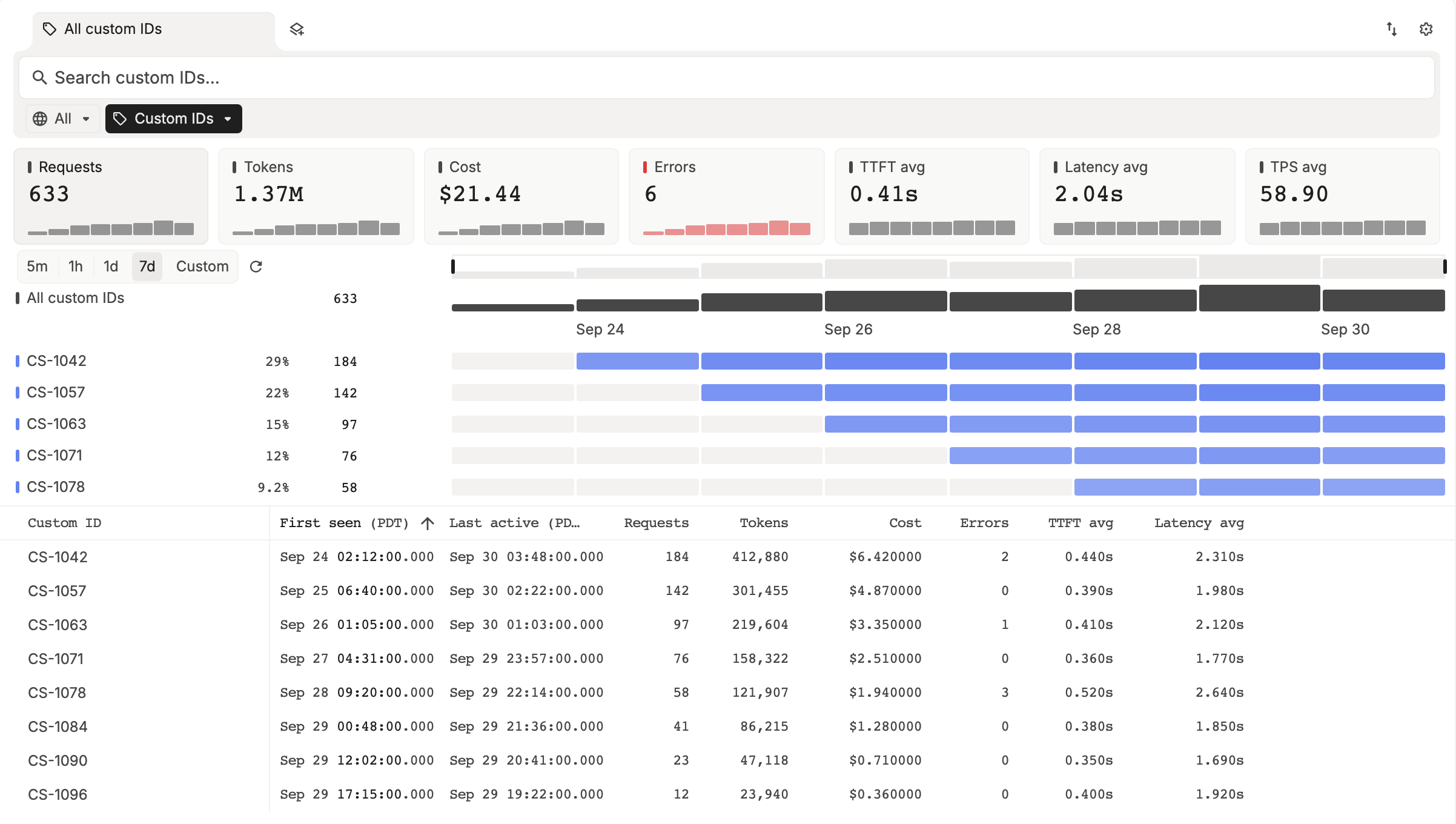
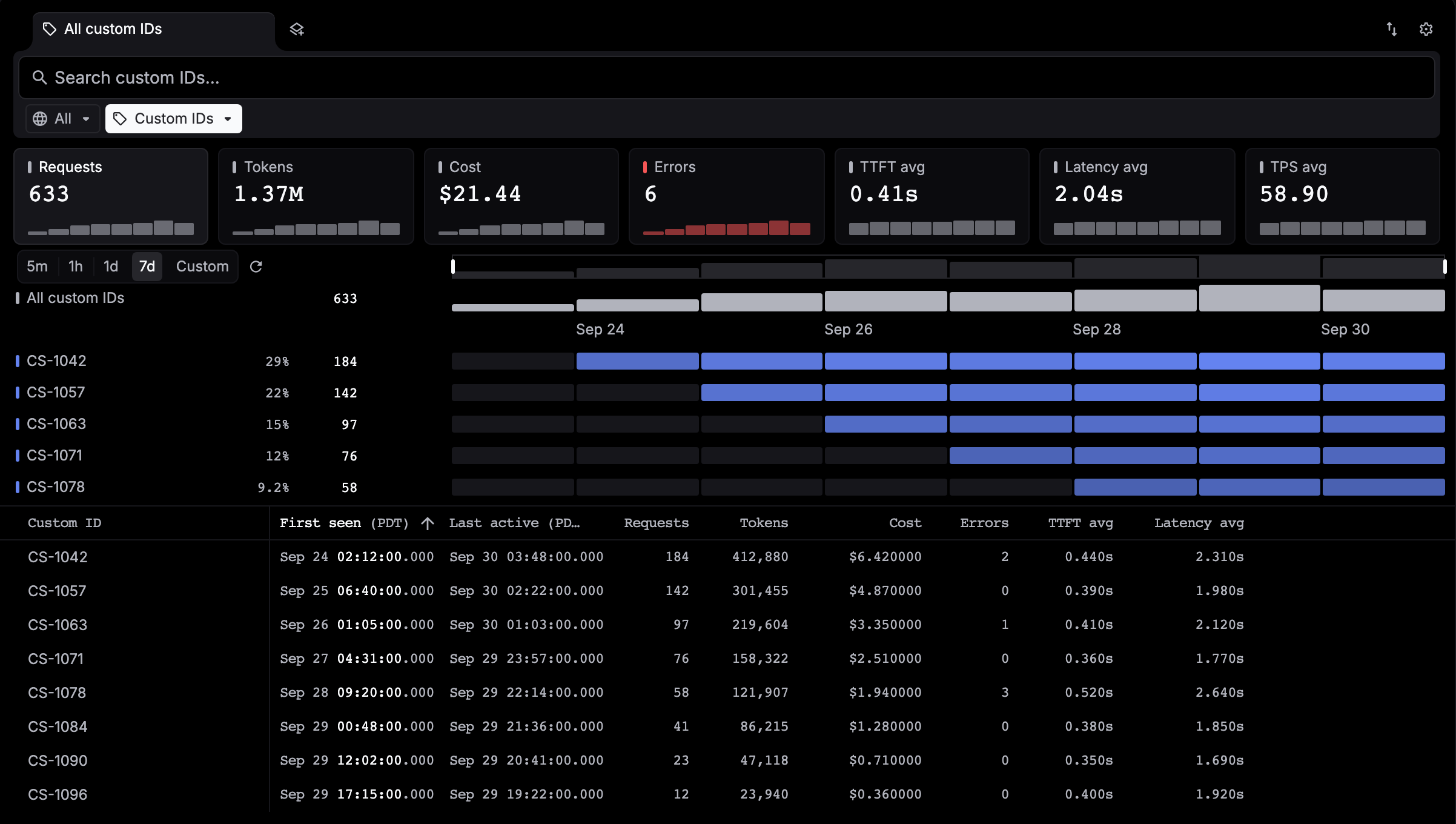
Each row is one custom_identifier, with its requests, tokens, cost, errors, and latency in the selected range. Click a metric card to chart the top five custom IDs by that metric.
Pick a time range
Use 5m, 1h, 1d, 7d or Custom above the chart. The default is 7 days, and the longest range is 31 days. Drag across the chart to zoom in. Type part of an ID in Search custom IDs… and press Enter to find it.
Open a custom ID
Click a row to see its Properties, Activity, Metrics and Performance. Click Open in logs (L) to see its spans in Logs for the same range.
Custom properties
metadata holds any other key-value pairs, such as the feature or region a request came from. Respan shows them as Custom properties, and stores the values as strings.
Find them in Logs
In Observability › Logs, click a span and open the Metadata tab. The session, customer and custom IDs are under Properties, and your metadata is under Custom properties.
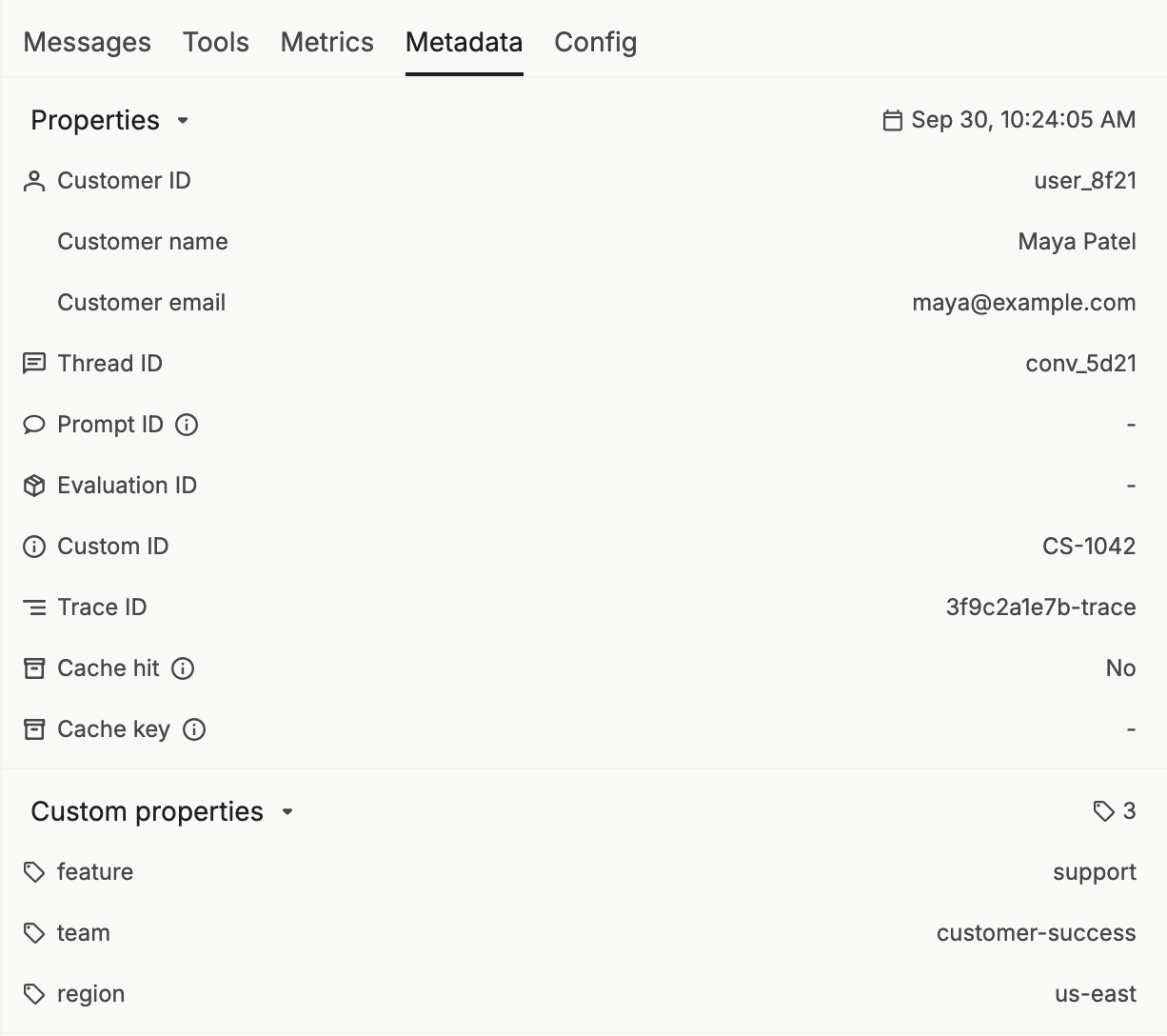
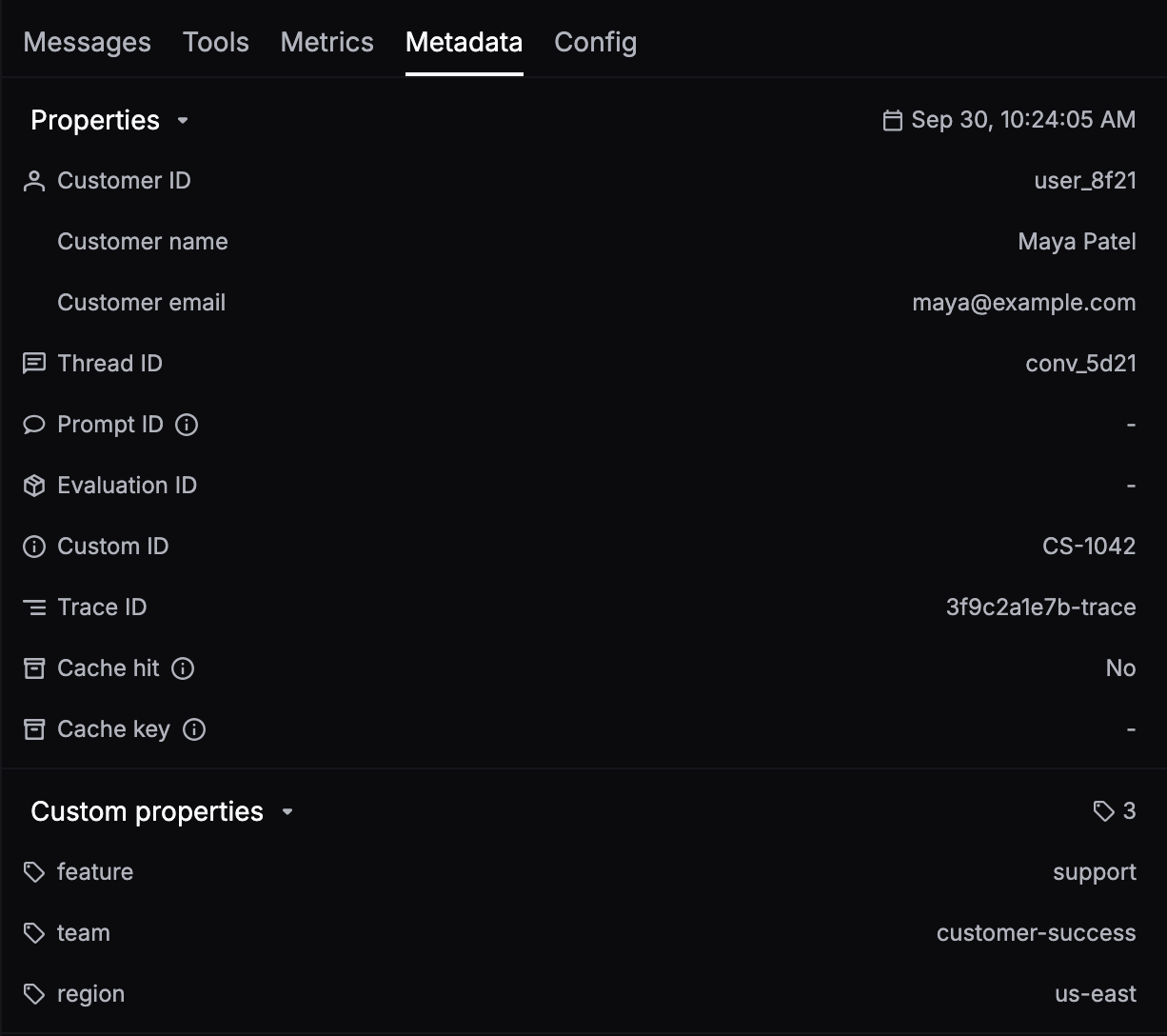
Hover a row and click its filter icon to show only the spans with that value.
Filter Logs
- Session ID, Customer ID or Custom ID: click More filters, pick the field, and enter the value.
- A custom property: click Custom property, search for the key, and pick a value.
See Logs for filter groups and saved views.