Behaviors
Flag refusals, missed instructions, completed tasks, and your own definitions on every span.
A behavior is a plain-language definition of something your agent does, such as refusing a request or promising a refund it can’t give. Respan scores every new span against each behavior that’s on, so you can see how often it fires and open the spans behind it. Behaviors are scored by span-01.
Behaviors need the Team plan or higher, and they’re on by default for new organizations. If they’re off, an organization admin can click Turn on behaviors above the Logs table.
Every behavior is an Issue (something to reduce), a Win (something to encourage), or Info (something to keep an eye on). It fires on a span when its confidence is above 65%, and scores too close to 65% to trust are marked “Uncertain”. Only new spans are scored, so turning a behavior on or off, or editing it, doesn’t rescore past spans.
Built-in behaviors
| Behavior | Type | Fires when |
|---|---|---|
| Refusal | Info | The assistant declines, deflects, or says it cannot help instead of attempting the request. Not when it attempts the request, even if it reports that it found nothing. |
| Instruction miss | Issue | The response clearly breaks an explicit instruction: wrong output format or language, an ignored limit, or a different task than the one asked. Not when the instruction is ambiguous. |
| Incomplete answer | Issue | The assistant leaves a material part of the request unanswered without acknowledging the gap. |
| Structured output | Info | The response uses a structured format such as JSON, a table, a list, or a code block. |
| Task complete | Win | The assistant delivers the requested result or completes the requested action, as shown in the trace. |
Create a custom behavior
Open the board
Go to Observability › Logs and click New custom behavior. You can also click New in the Behaviors section of a span’s Metrics tab.
Describe each behavior
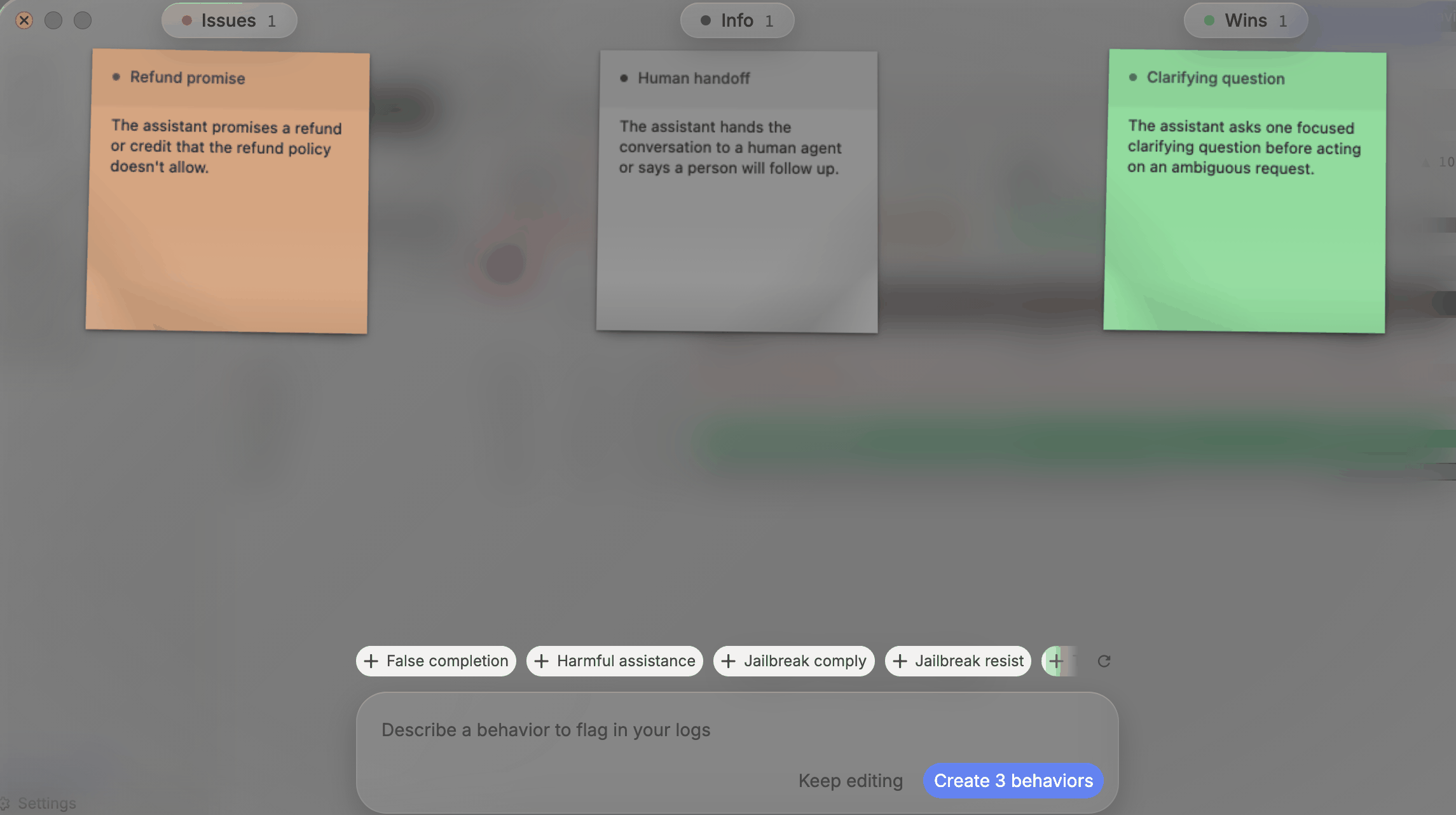
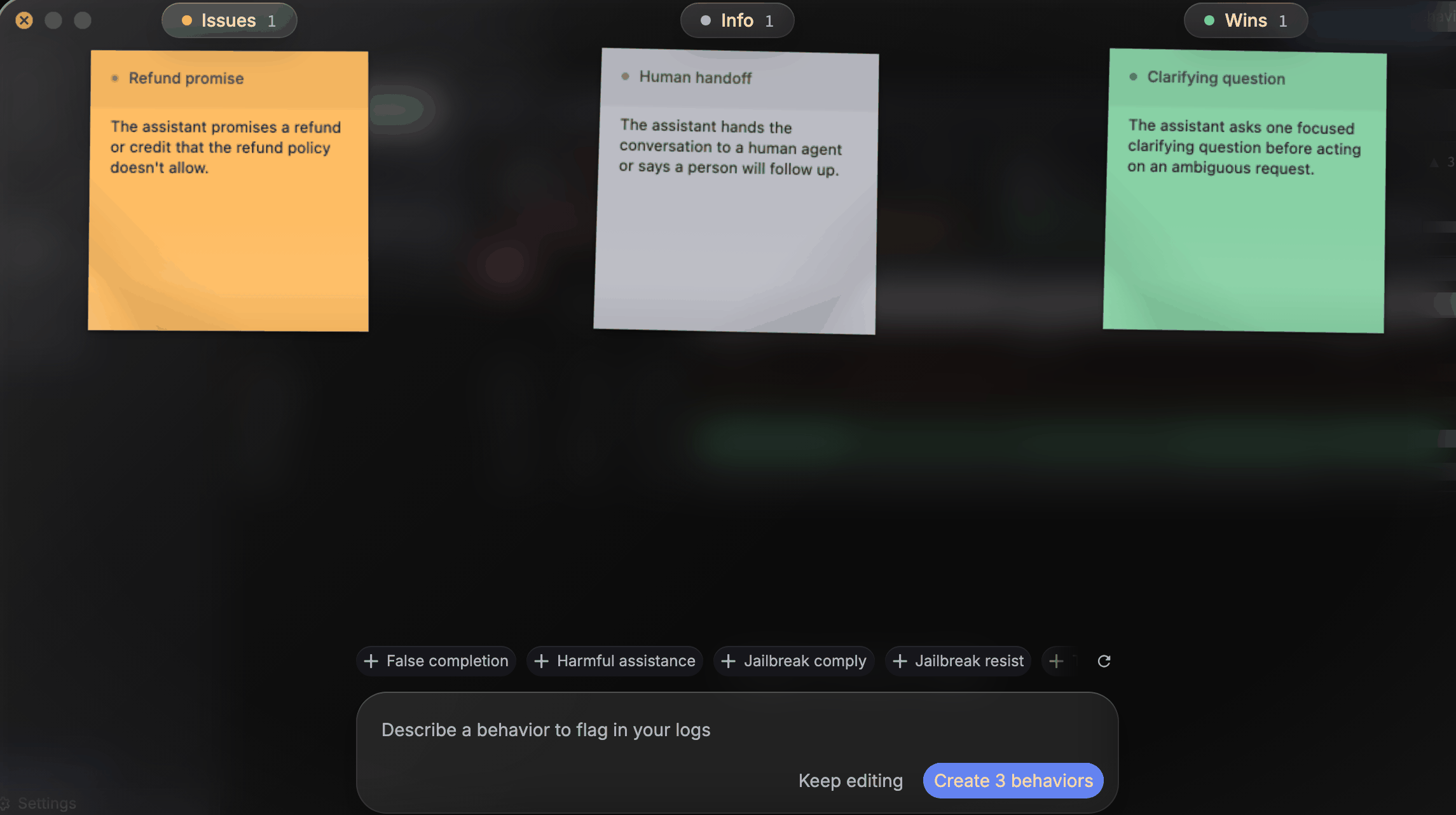
Type a definition in “Describe a behavior to flag in your logs” and press Enter to pin it as a note. Or click a suggestion chip to pin a ready-made one; hover a chip to read its definition. You can pin up to 20 at a time, and click a note to edit it.
Say what counts and what doesn’t. For example, Refusal doesn’t fire when the assistant attempts the request, even if it reports that it found nothing.
Sort the notes
Click Finish and sort. Respan names each note and sorts it under “Issues”, “Info”, or “Wins”. Drag a note to another column to change its type. A definition that isn’t a behavior is removed.
Create them
Click Create behavior, or Create N behaviors for several. Nothing is created until you do, and Keep editing takes you back to the board. If some fail, they stay on the board; click Retry N behaviors.
New spans are scored for your behaviors from then on.
Review where a behavior fired
Open its type
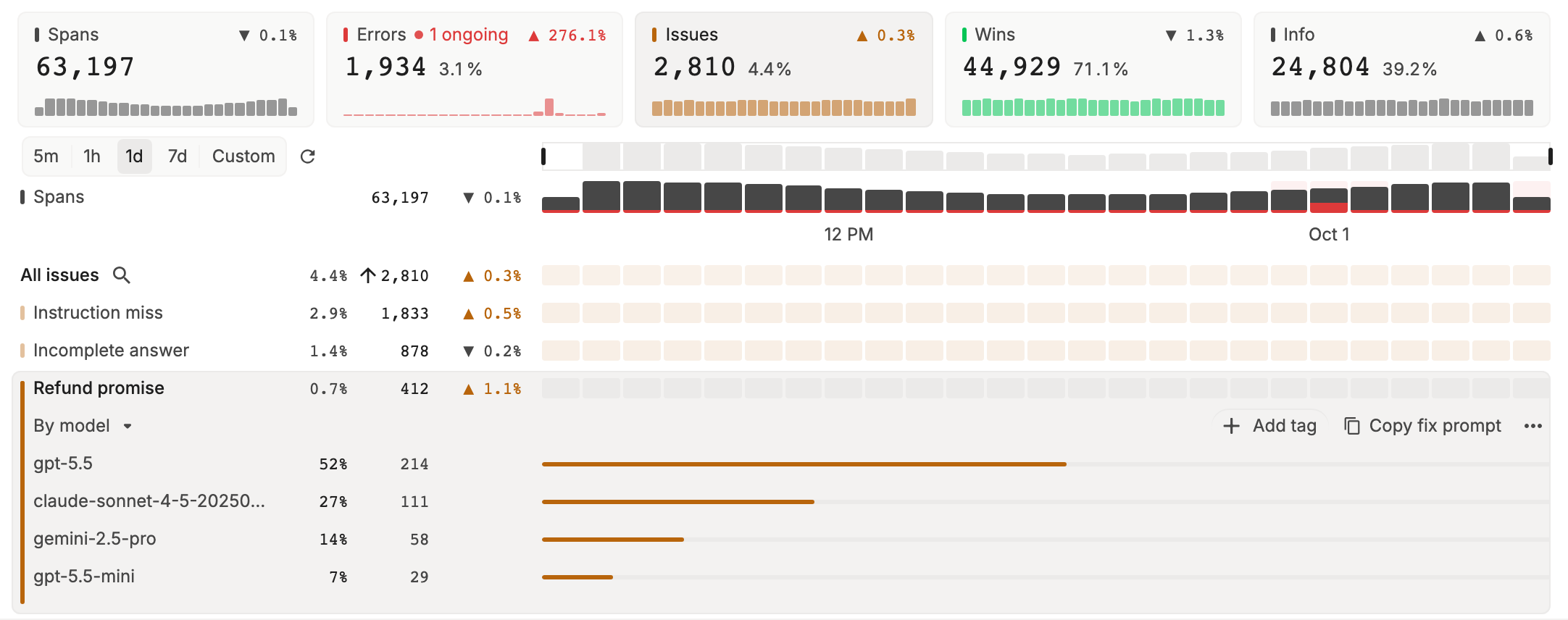
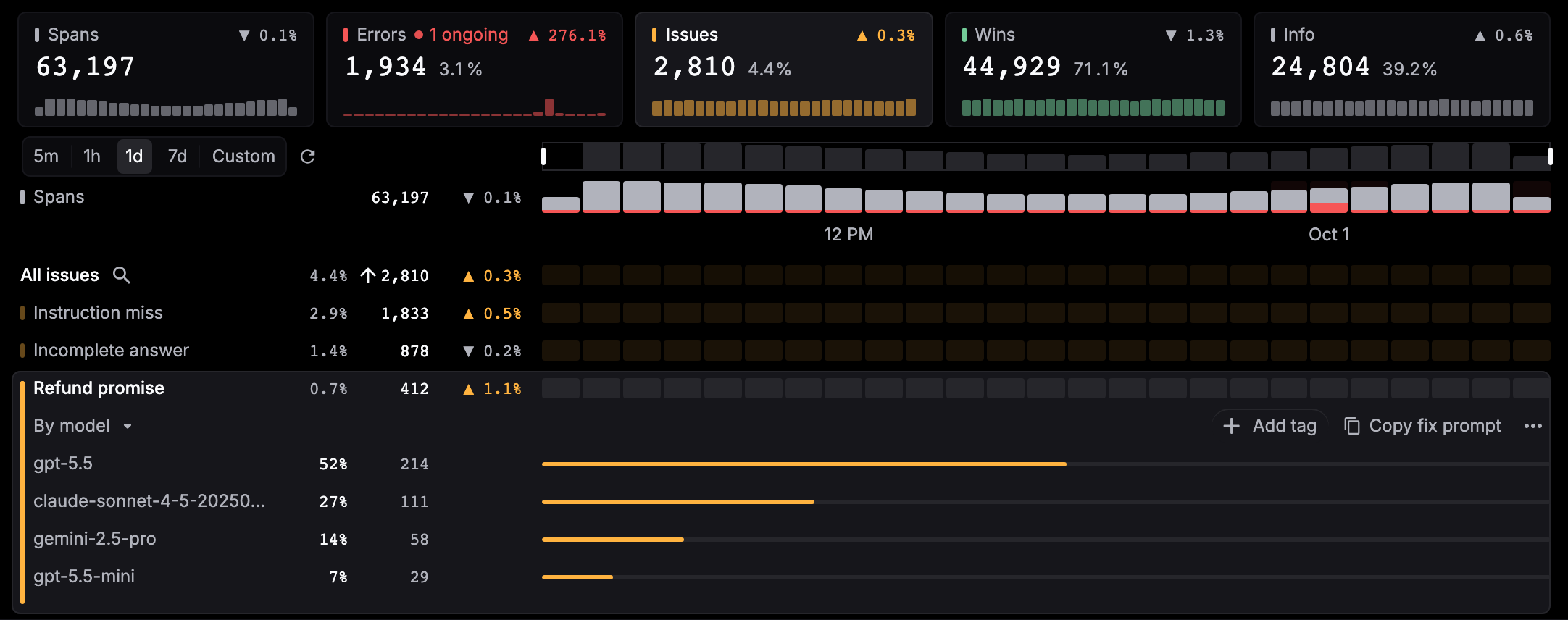
In Logs, click the Issues, Wins, or Info card in the signals panel. The panel lists each behavior of that type with its share of spans, count, and change from the previous period.
Pick the behavior
Click its name. The table filters to its spans, and the row opens with a By model split. Switch it to By customer, By provider, or By prompt.
Narrow to a moment
Click a cell in the behavior’s row. The table lists its spans from that window.
Open a span
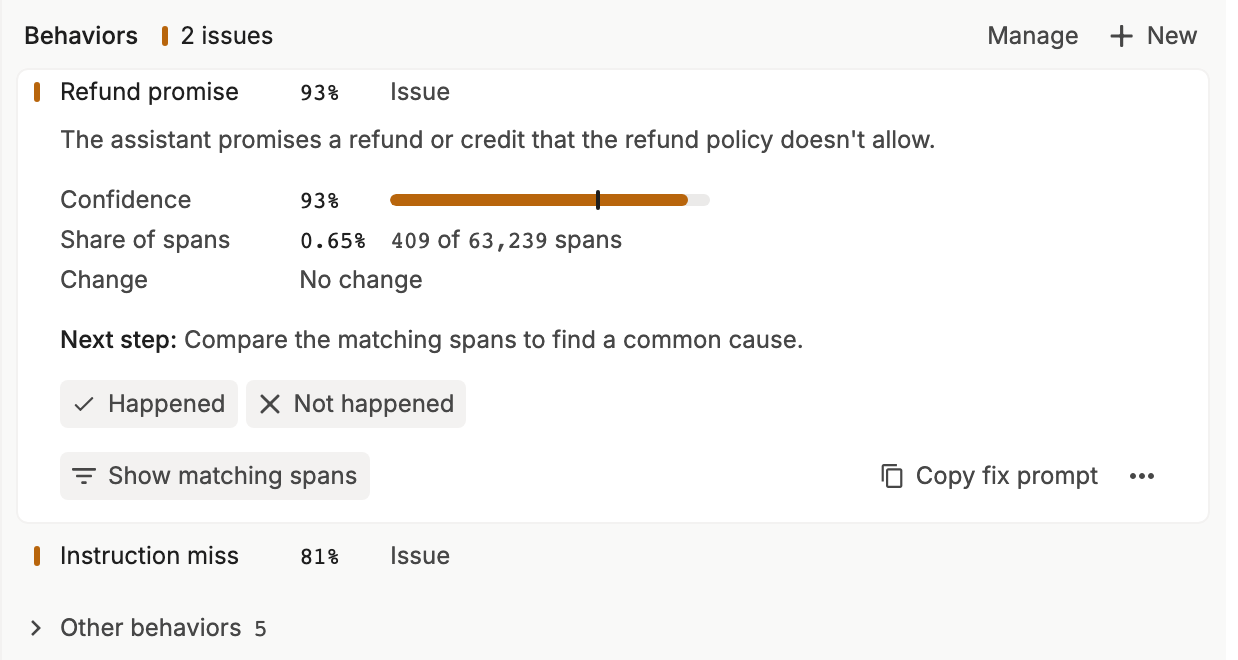
Click a span in the table and open the Metrics tab. The Behaviors section leads with what fired, such as “2 issues”. Click a behavior to see its definition, Confidence, Share of spans, Change, and a suggested next step.
Correct the verdict
If the model got it wrong, click Happened or Not happened. Your call replaces the model’s score, the row shows “Overridden”, and every count uses your call.
Show matching spans filters the table to every span with that behavior. You can also filter Logs with the Behavior quick filter (Issue, Win, or Info), or pick Behavior from More filters for specific behaviors.
Act on a behavior
An open behavior row in the signals panel has Add tag, Copy fix prompt for issues, and a ⋯ menu:
- Edit definition and Delete, for custom behaviors. Edits can take about a minute to reach new spans, and deleted behaviors can’t be recovered.
- Turn off stops scoring new spans for it.
- Create monitor makes a monitor for this behavior with your current filters, turned off, and opens it. See Monitors.
- Open reports goes to Settings › Reports. Scheduled reports include behavior counts.
- Copy behavior ID, Copy behavior link, and Copy as Markdown link.
Copy fix prompt copies a prompt for your coding agent. It asks the agent to investigate through the Respan MCP server and propose the smallest safe fix.
Turn behaviors on or off
In a span’s Metrics tab, click Manage. “Manage behaviors” lists your “Custom” and “Built-in” behaviors, each with a switch. A turned-off behavior stops scoring new spans, and its past scores stay. Built-in behaviors can be turned off but not edited or deleted.
In the signals panel, turned-off behaviors fold under “Turned off · N” at the end of each behavior view. Click Turn on to score one again.